

Ensuring your account is set to the correct time zone is important for accurate reporting and notification scheduling.
- Access Company Settings
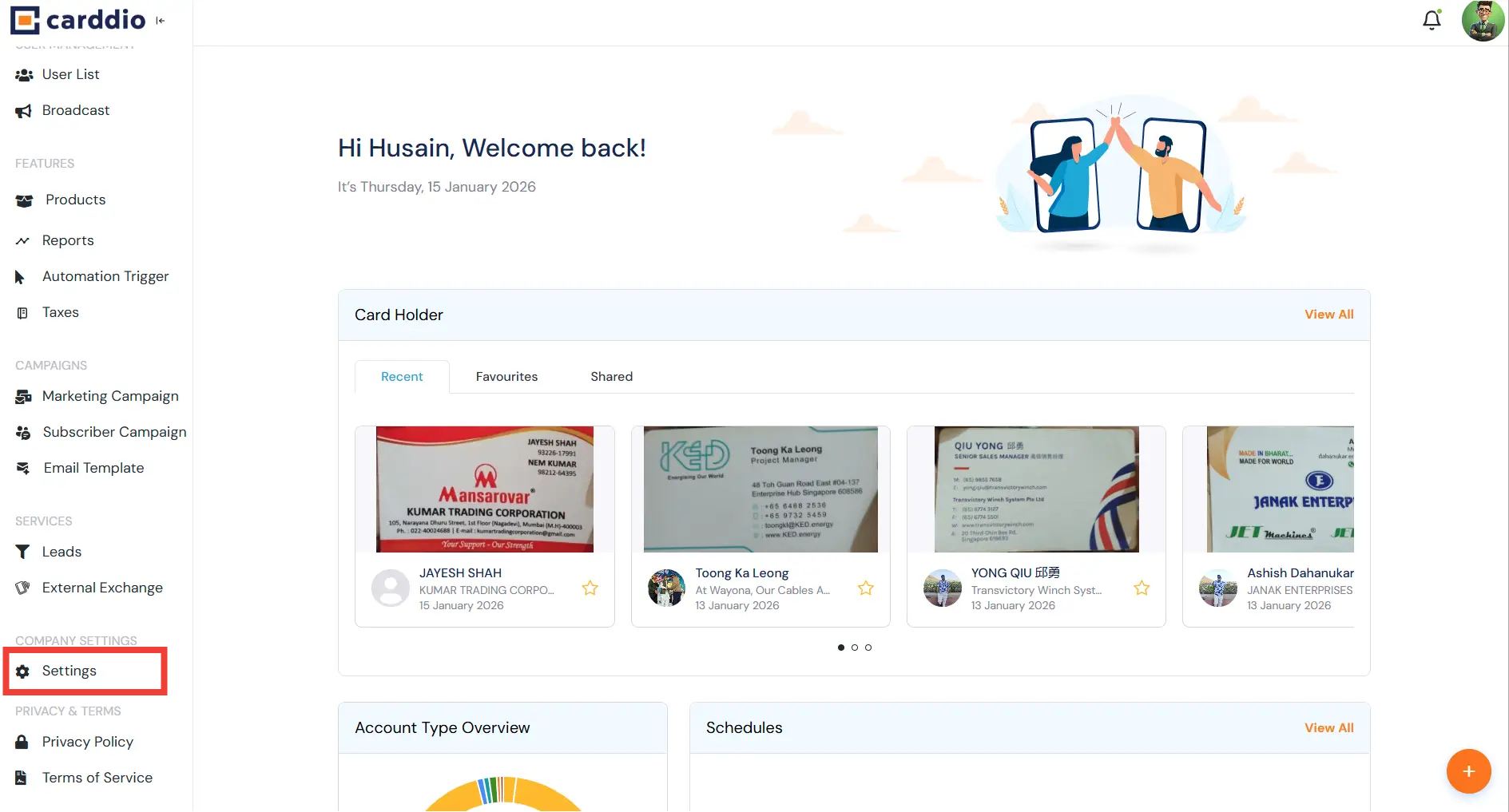
From the dashboard sidebar, navigate to the Company Settings section at the bottom left and click on Settings.
- Select Time Zone
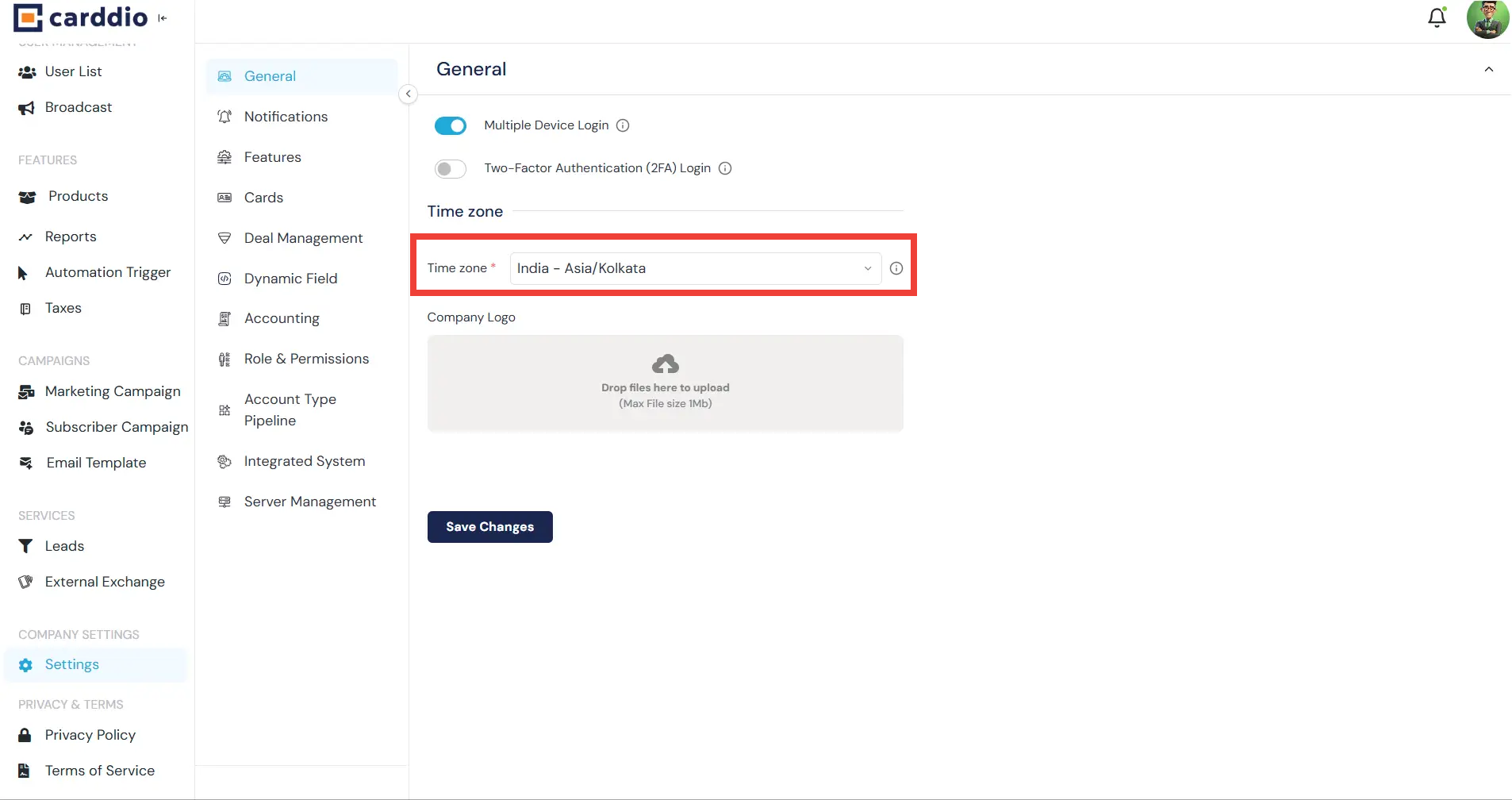
In the General settings tab, locate the Time zone field. Click the dropdown menu to select your specific region (e.g., India – Asia/Kolkata).
- Save Changes
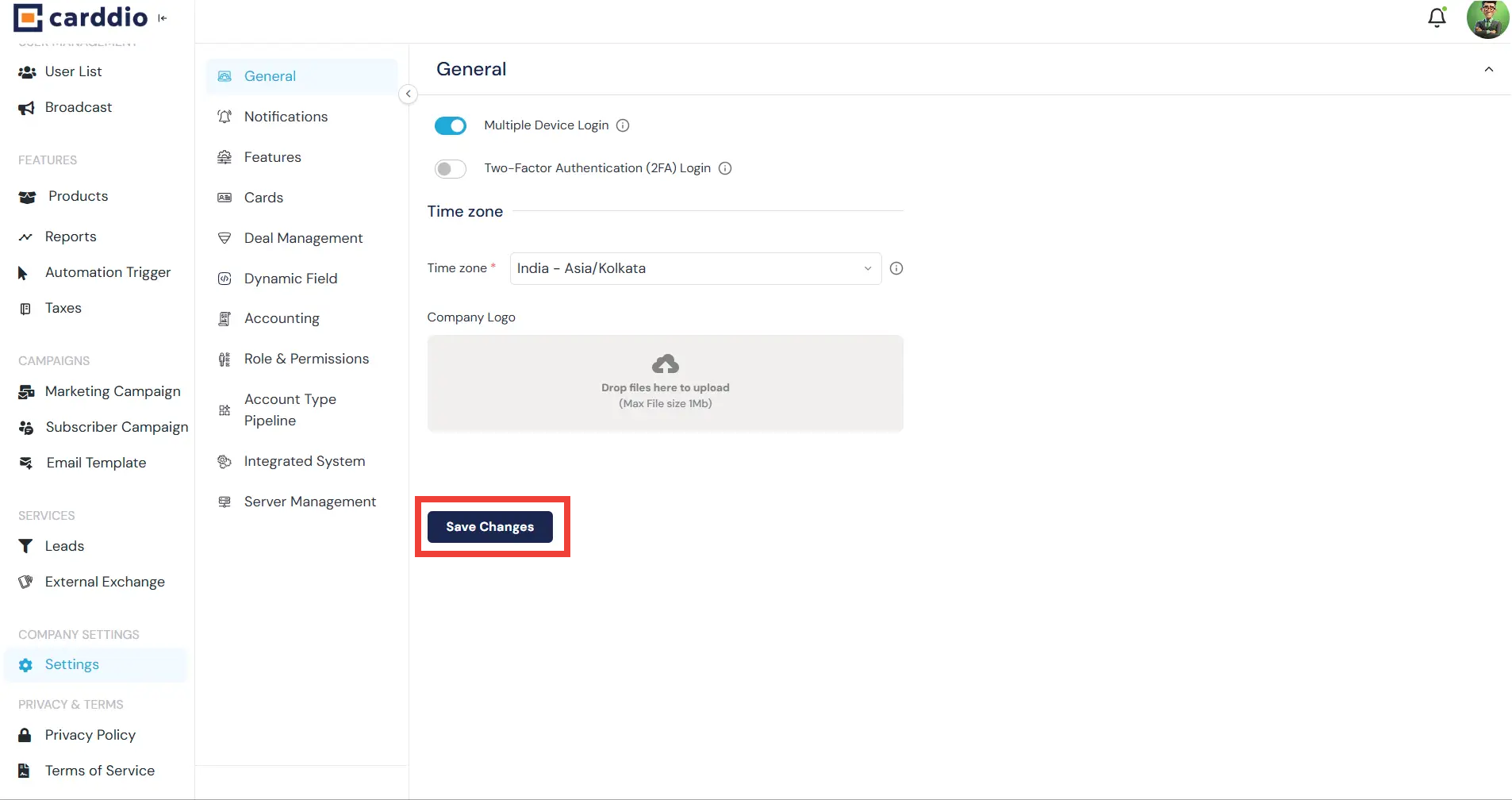
After selecting the correct time zone, click the dark blue Save Changes button at the bottom of the page to apply the update.
- Verify Update
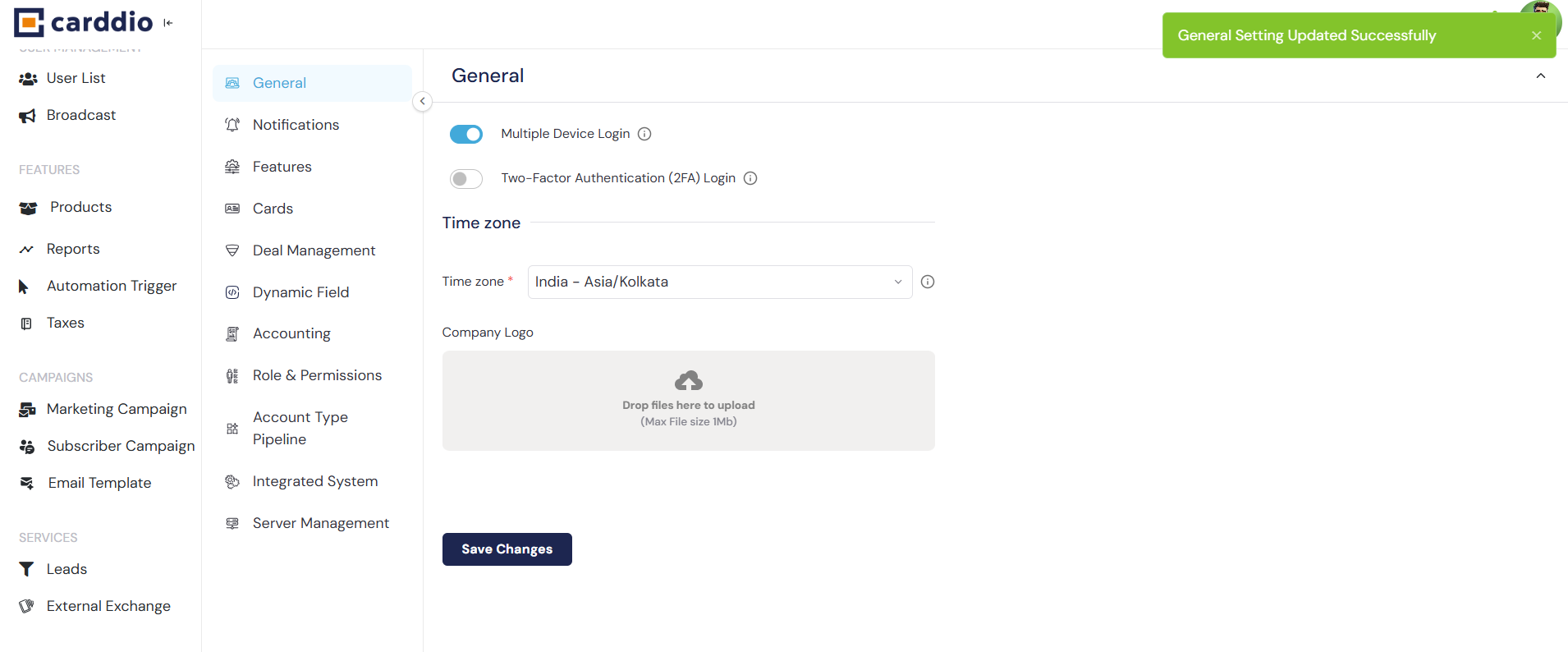
A green notification banner stating “General Setting Updated Successfully” will appear in the top right corner to confirm the change.
Success! Your system time zone has been updated.


