

Controlling what your team members can see and do is vital for data security. You can set these permissions during user creation or by editing an existing user.
-
Select the User Role
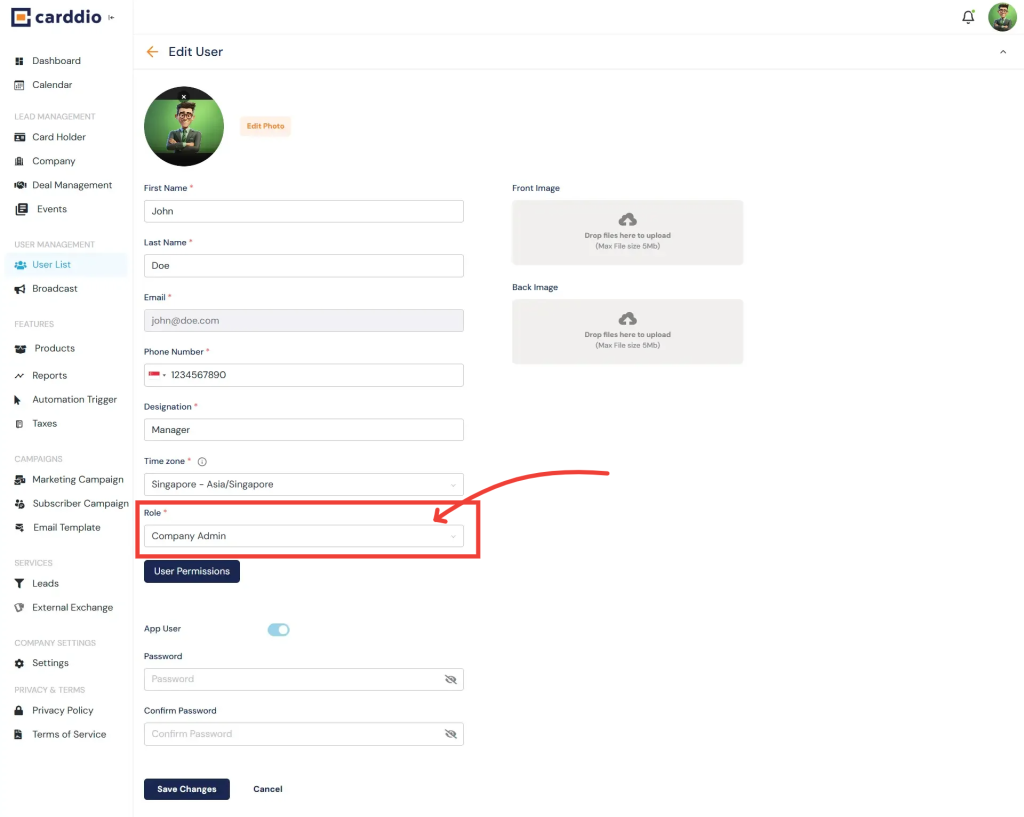
In the user creation or edit form, scroll down to the Role dropdown menu. Select the appropriate hierarchy level (e.g., Company Admin, Manager, Staff).
-
Configure Granular Permissions
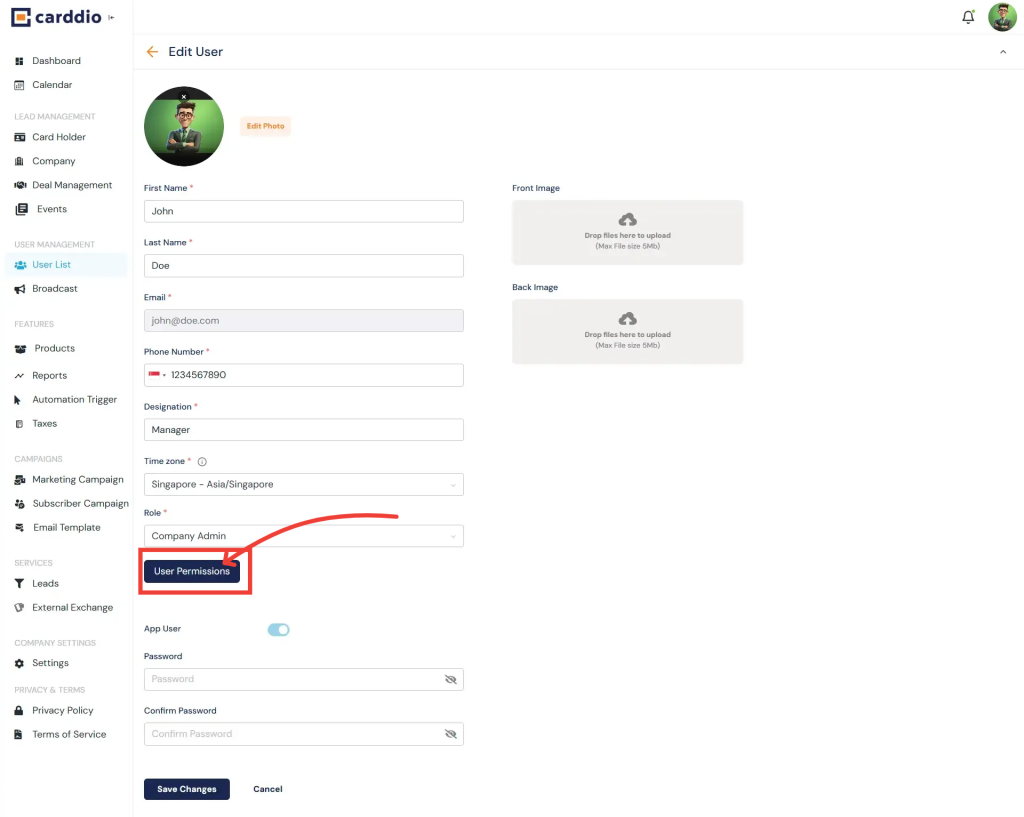
For more specific control, click the User Permissions button located below the Role selection.
-
Toggle Access Modules
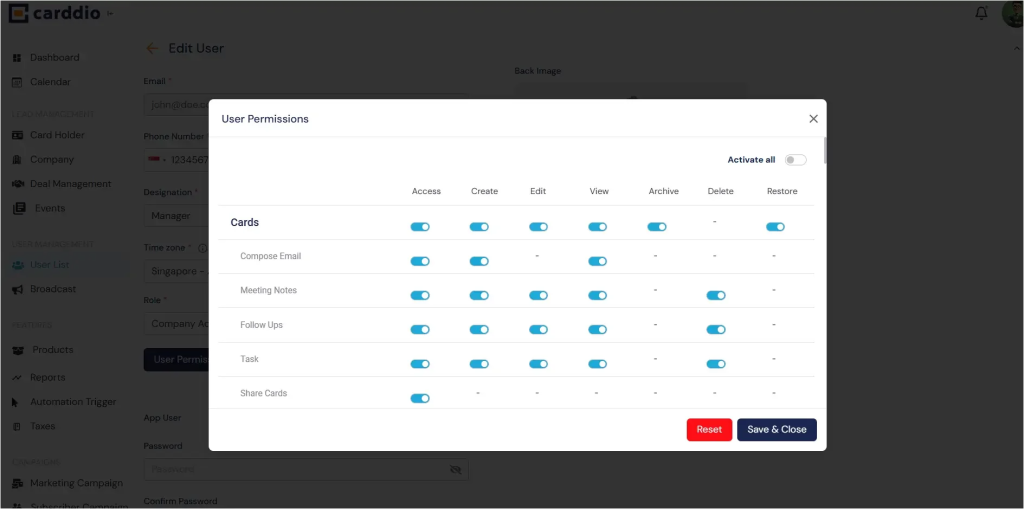
A pop-up window will appear listing various modules (Cards, Email, Meetings, Tasks). You can set specific rights for Create, Edit, View, and Delete capabilities.
- Blue Toggle: Access Granted
- Grey Toggle: Access Denied
-
Save Permissions
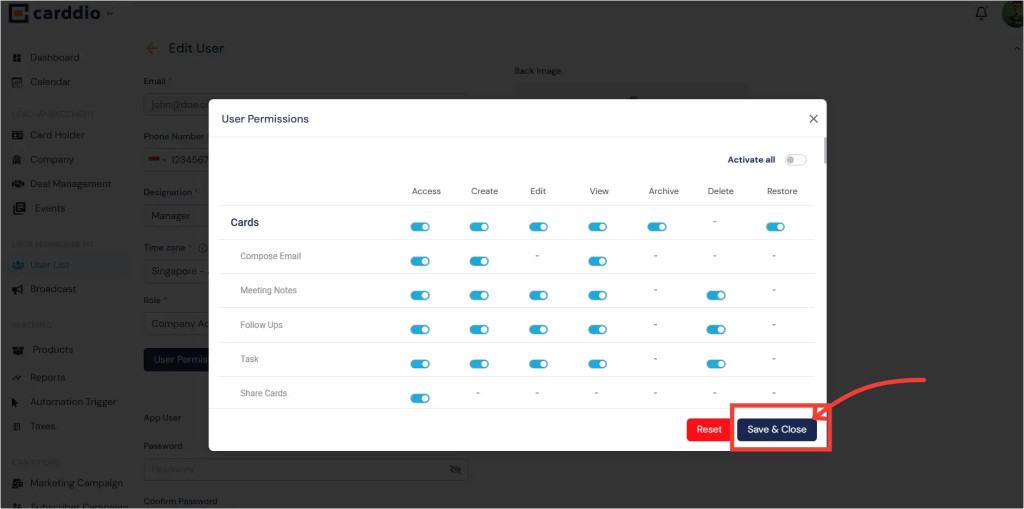
Once you have configured the access levels, click Save & Close inside the permissions window.
Success! The user roles and specific permissions have been successfully configured.


