

To add a new team member to the system, follow these steps:
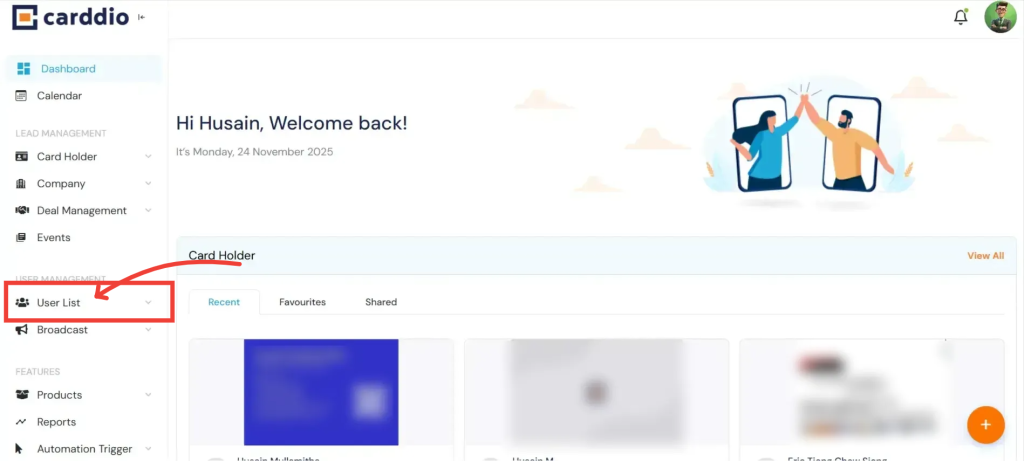
- Navigate to the User List
Log in to your dashboard and look for the User Management section on the left sidebar. Click on User List.
- Initiate Creation
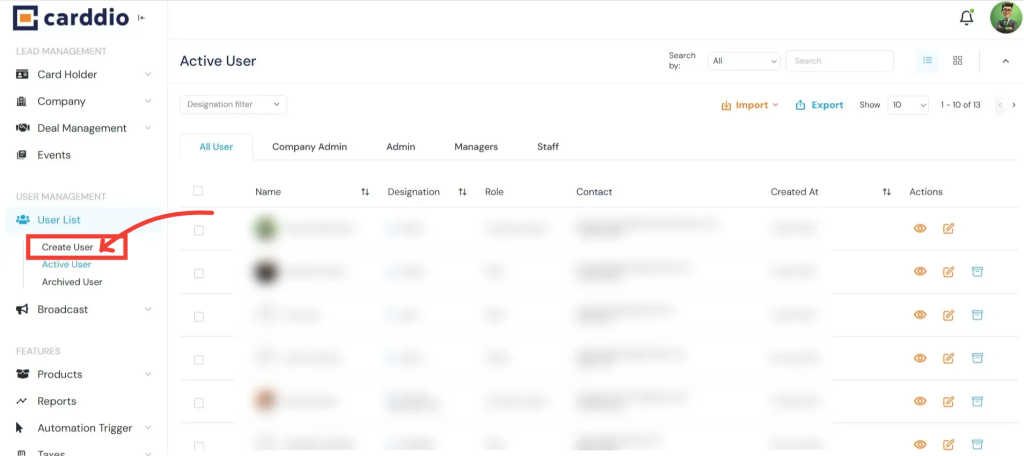
Once in the User List view, locate the buttons on the left side of the interface. Click the Create User button.
- Fill in User Details
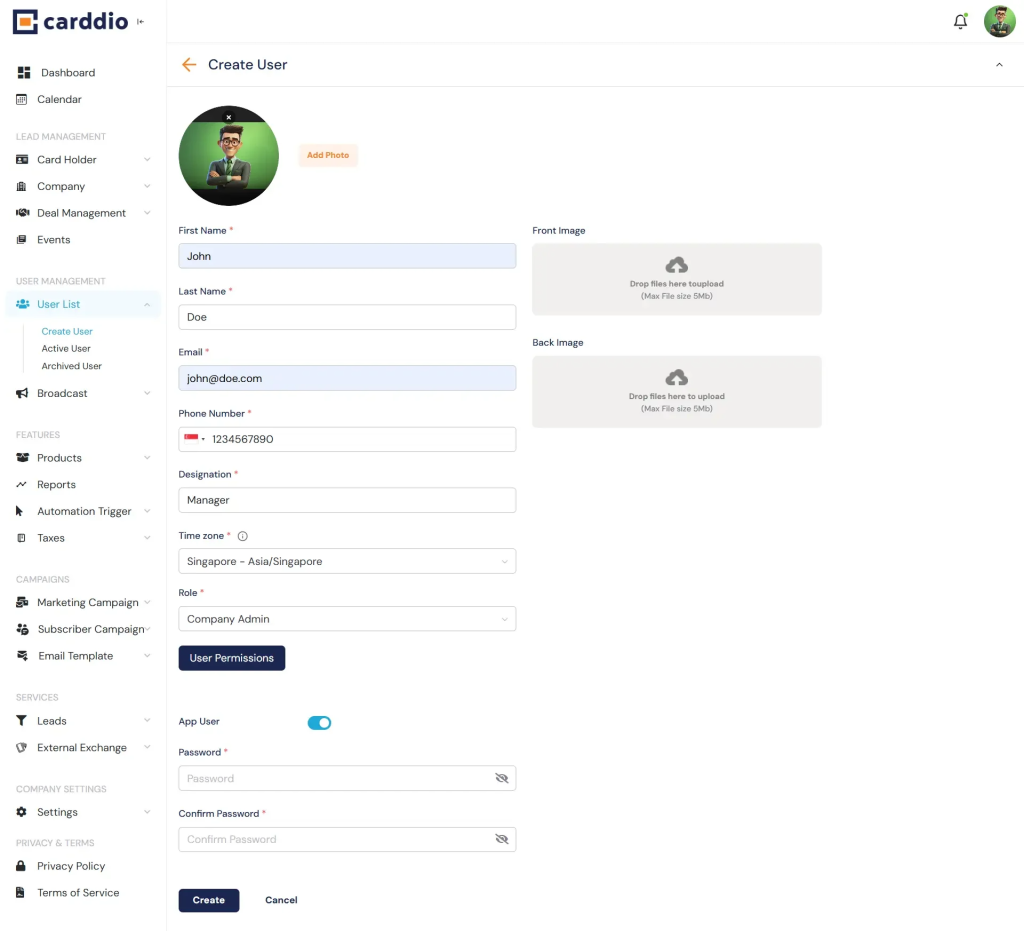
The “Create User” form will appear. Enter the required information for the new team member:
- First & Last Name
- Email Address (This will be their login ID)
- Phone Number
- Designation (e.g., Manager, Sales Exec)
- Password
- Finalize Account
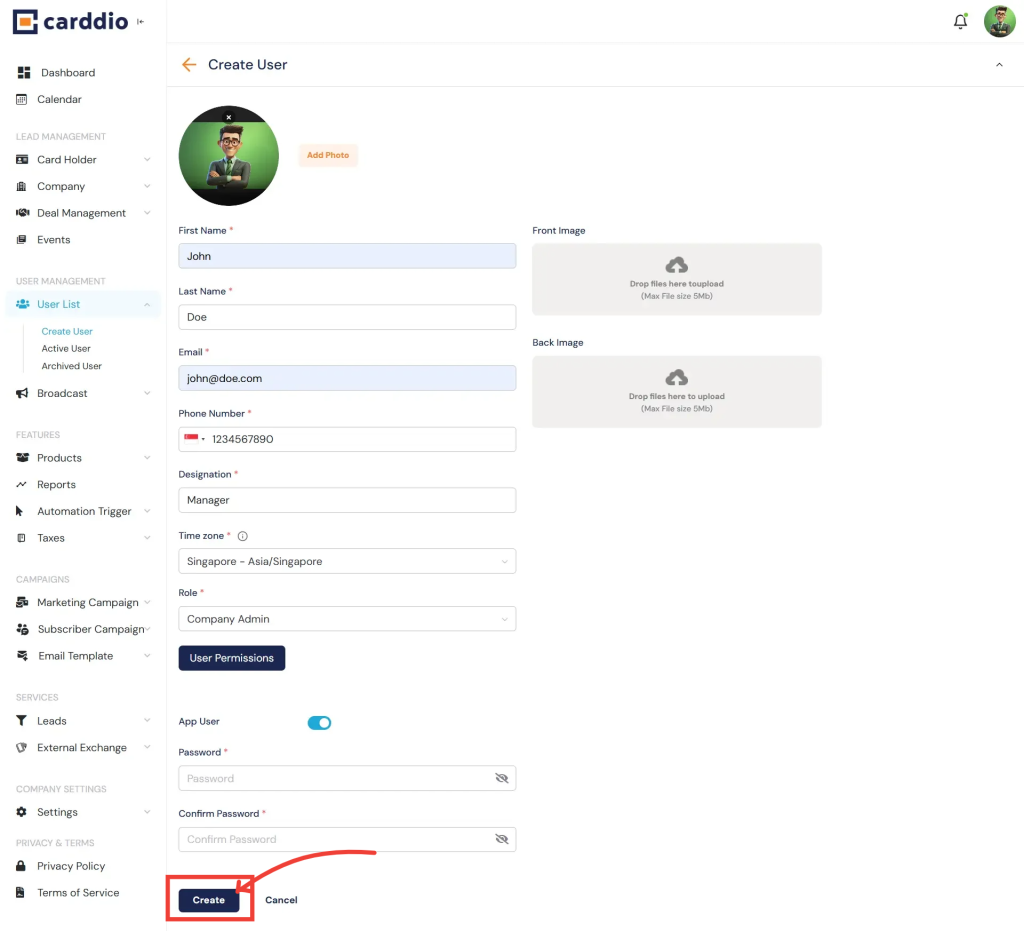
After filling in the details and setting the Role (see the Roles & Permissions guide for more details), click the Create button at the bottom of the form.
- Verify User Creation
Once created, you will be redirected to the Active User list. You can confirm the action was successful by locating the new user in the list as shown below.
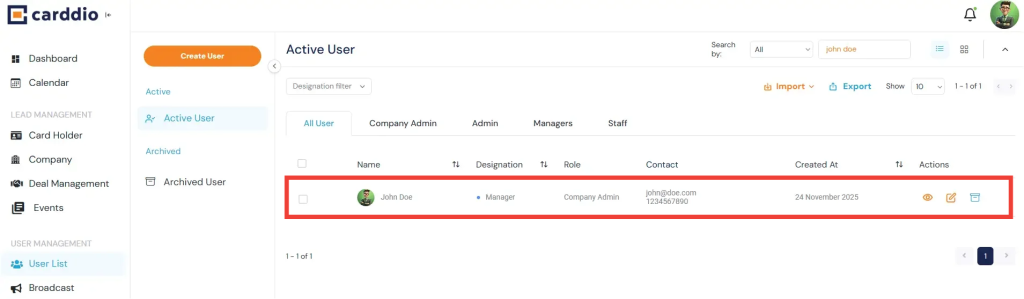
Success! You have successfully created a new user. A notification will appear confirming the action, and the user can now log in with their credentials.


