

Managing your triggers in the Automation Trigger module is straightforward. Follow the steps below to learn how to inactivate or delete an existing trigger.
-
Open the Trigger List
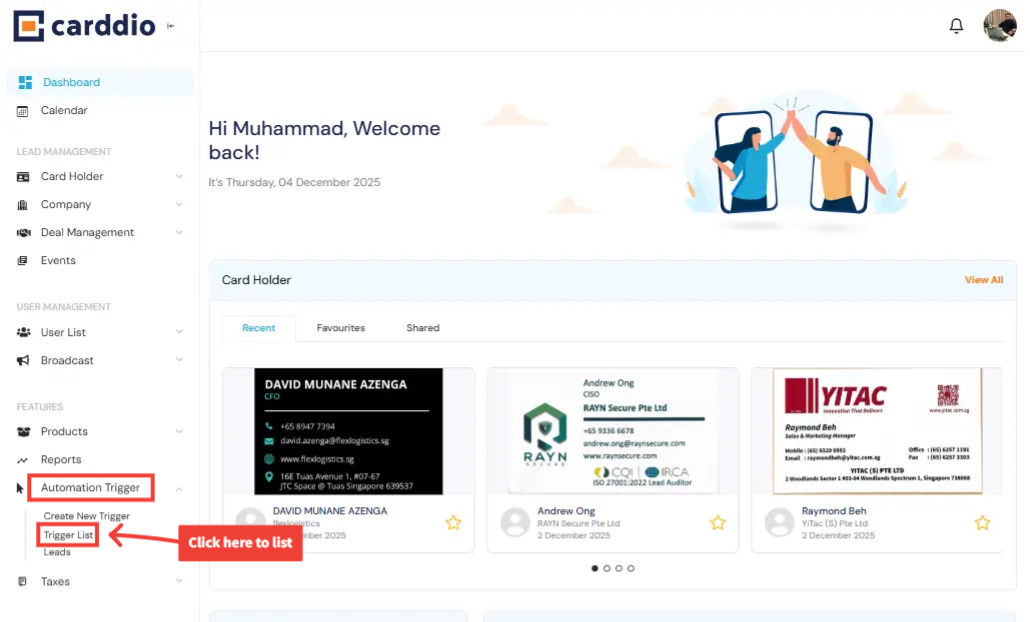
From the Dashboard, navigate to the left sidebar and click on Automation Trigger, then select Trigger List to view all automation triggers.
-
Edit a Trigger to Inactivate It
To inactivate a trigger, click on the pencil icon next to the trigger you wish to modify.

-
Switch the Trigger to Inactive
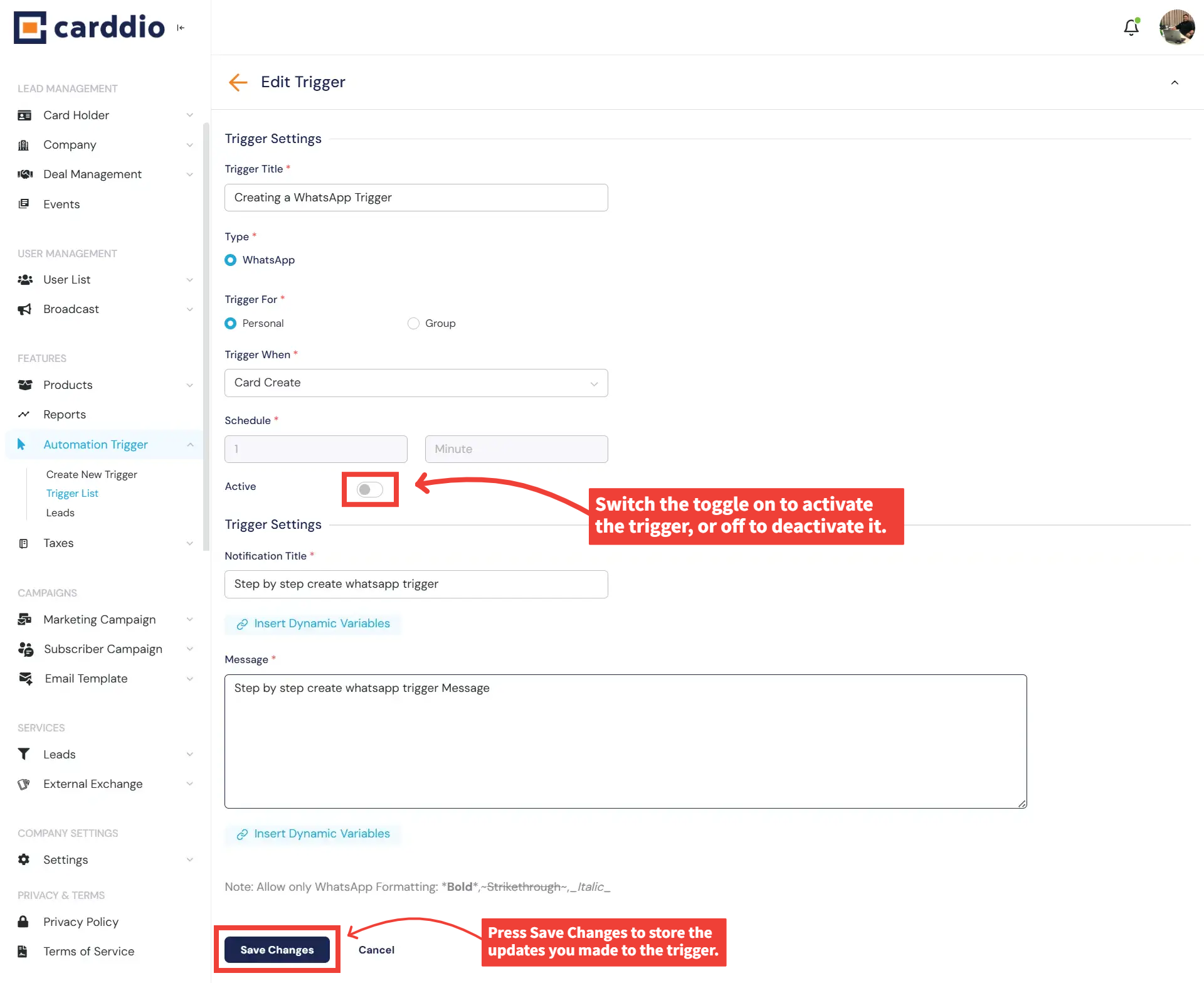
Inside the Edit Trigger screen, turn the Active toggle OFF.
After adjusting the setting, click Save Changes to update the trigger status.
-
Delete a Trigger
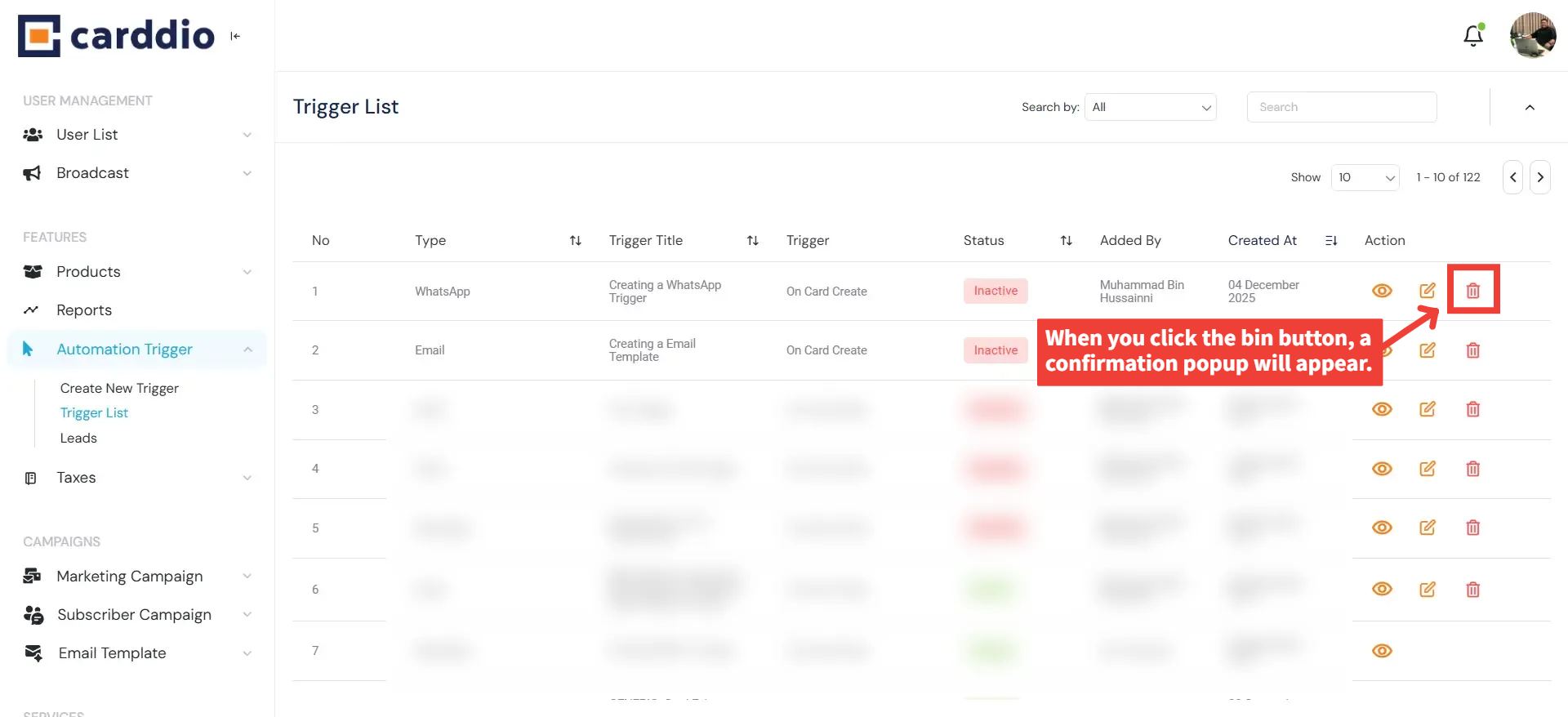
If you wish to remove a trigger permanently, click on the bin icon in the Action column.
-
Confirm Trigger Deletion
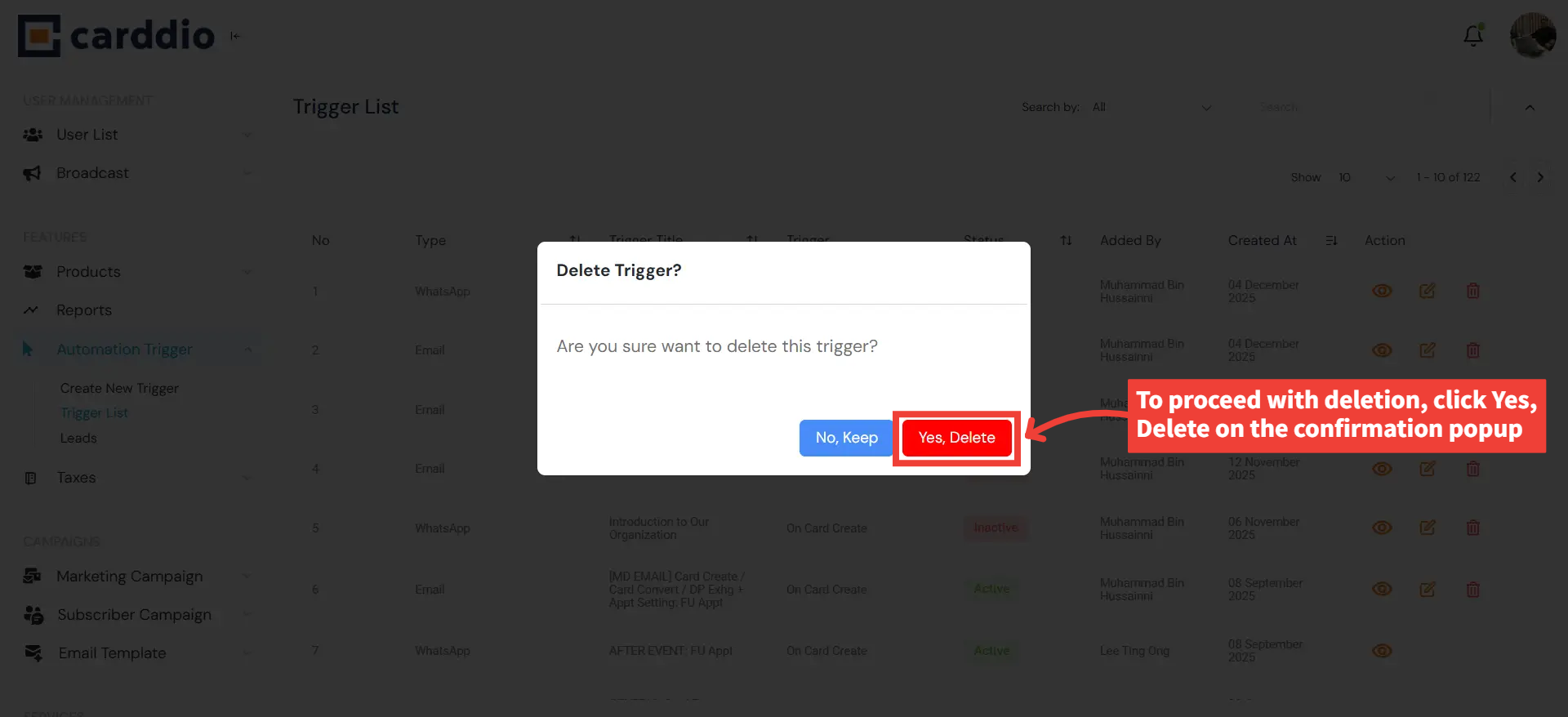
A confirmation popup will appear asking if you are sure.
Click Yes, Delete to permanently remove the trigger.
Note: Deleted triggers cannot be recovered. Ensure you only remove triggers that are no longer required.


