
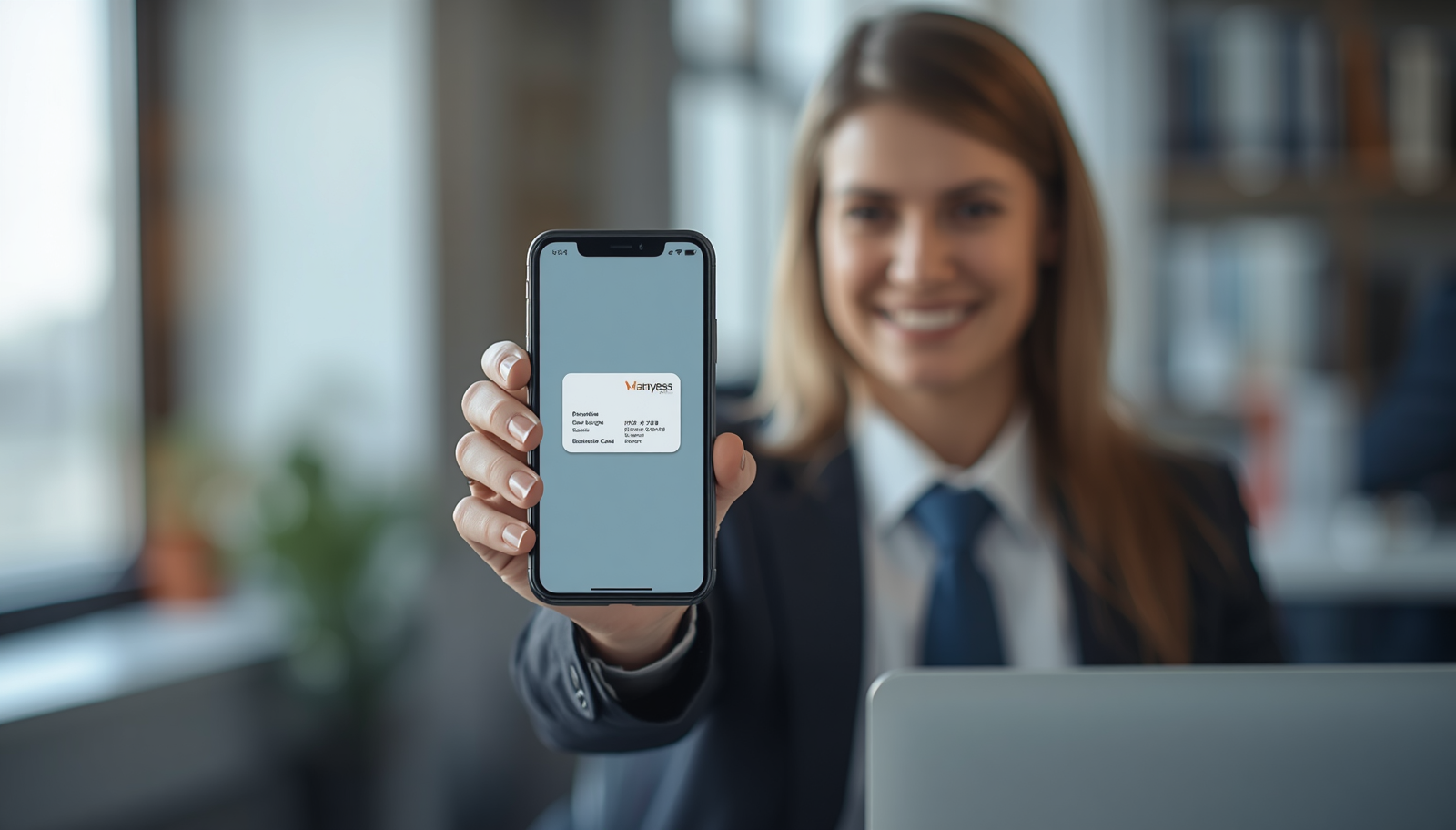
Setting up a customizable corporate digital profile takes less time than getting a box of printed name cards delivered, and unlike paper, it updates instantly, works across your whole team, and can be shared by NFC tap, QR code, or a simple link. Here’s exactly how to build one, step by step.
Step 1: Choose a Template
Start by picking a base template for your digital business card maker. Templates are pre-built layouts you customize rather than design from scratch — pick one that matches how you’ll use the card (individual networking, client-facing sales, or a team-wide standard).
A good customizable digital profile template should let you adjust layout, section order, and visible fields without touching any code. If you’re stuck editing raw HTML at this stage, the tool isn’t doing its job.
Step 2: Add Your Branding
This is where the profile stops looking like a generic template and starts looking like your company. Add:
- Your logo
- Brand colors
- A professional photo or headshot
- Job title, company name, and department
- Social links (LinkedIn, company website, portfolio only the ones you actually use for business)
Keep this step simple rather than crowded. A digital profile with five clean, relevant fields makes a stronger impression than one with fifteen scattered ones.
Step 3: Choose How You’ll Share It — NFC, QR, or Link
A digital NFC business card isn’t your only option, it’s one of three ways to share the same profile, and most people end up using all three depending on the situation:
- NFC tap — best for face-to-face meetings and networking events. Recipients tap their phone against your card, and your profile opens instantly, no app required.
- QR code — best when NFC isn’t an option, such as printed materials, email signatures, or presentation slides. Anyone with a phone camera can scan it.
- Direct link — best for email, text, or online sharing where there’s nothing physical to tap or scan.
You don’t have to pick just one. Most professionals carry an NFC card as their primary tool and keep the QR code and link as backups for situations where a tap isn’t possible.
Step 4: Manage Profiles Across Your Whole Team
If you’re setting this up for more than just yourself, this step matters most. A corporate digital profile should let an admin:
- Create and issue profiles for every team member from one dashboard
- Apply consistent branding (logo, colors) across all employee profiles automatically
- Update company-wide details like a new office address or phone number once, with every profile updated instantly
- See which profiles are active and being used
This is the difference between a personal digital card tool and a genuinely corporate one — a team of 10, 50, or 200 shouldn’t mean 10, 50, or 200 separate accounts to keep updated by hand.
Try It Yourself
That’s the entire process: choose a template, add your branding, pick how you’ll share it, and roll it out across your team if needed. No design skills, no IT setup, no waiting on a print order. Create your free digital profile.
Conclusion
A customizable corporate digital profile isn’t just a digital version of a paper card; it’s a profile you control, update instantly, and share however fits the moment, whether that’s an NFC tap at an event, a QR code on a slide, or a link in an email. For teams, the real value is consistency: everyone on brand, updated at once, managed from a single dashboard instead of a stack of reprints. Carddio’s digital profile builder covers all four steps above in one platform, so if your team is still ordering paper cards and hoping nobody runs out before the next event, Carddio is built to remove that problem entirely. Create your free digital profile today and see it in action.