
Email Triggers allow you to automate sending emails based on specific actions, such as when a new card is created. Follow the steps below to set up your Email Trigger.
-
Navigate to the Automation Trigger Module
From your Dashboard, open the left sidebar and click on Automation Trigger, then select Create New Trigger.

-
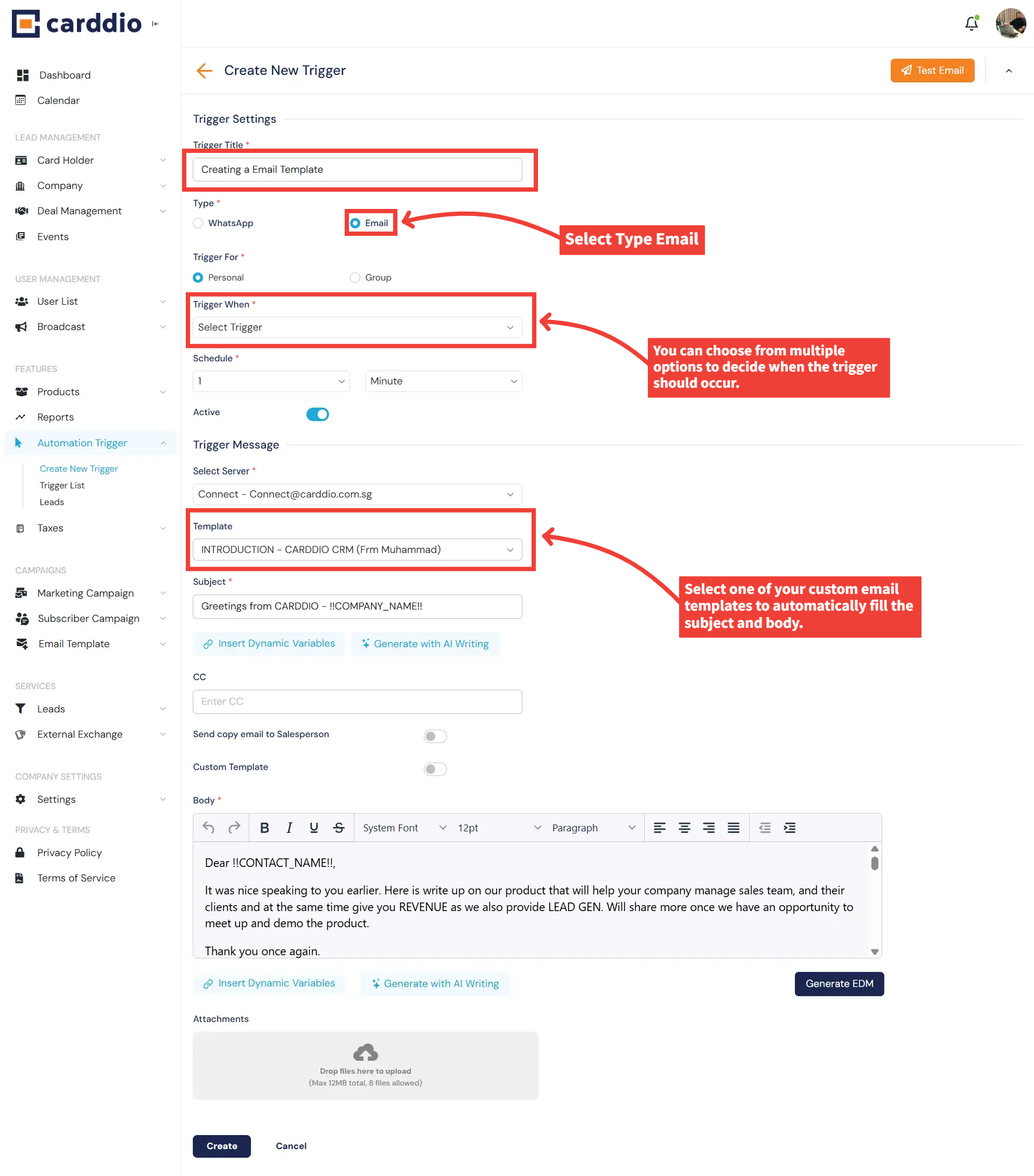
Enter Trigger Settings
Provide a Trigger Title, select Email as your type, and choose when the trigger should occur.
You may also select Personal or Group for the trigger audience.
-
Configure Trigger Message
Choose your email server, select a template, and the subject line will auto-fill.
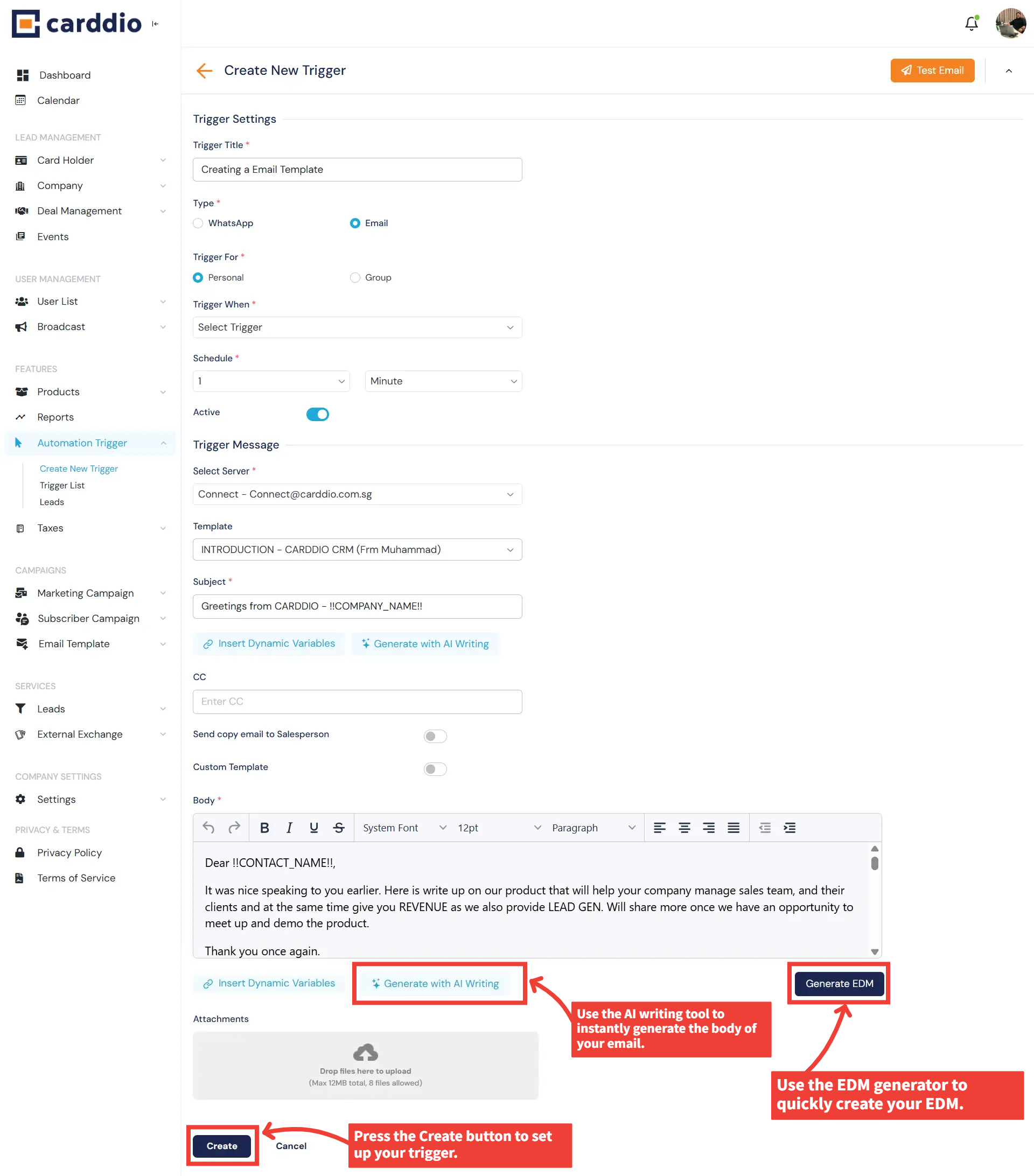
Use the AI Writing tool or EDM generator to quickly generate and refine your email message.
-
Save the Trigger
After completing all details, click the Create button at the bottom to finalize your new Email Trigger.
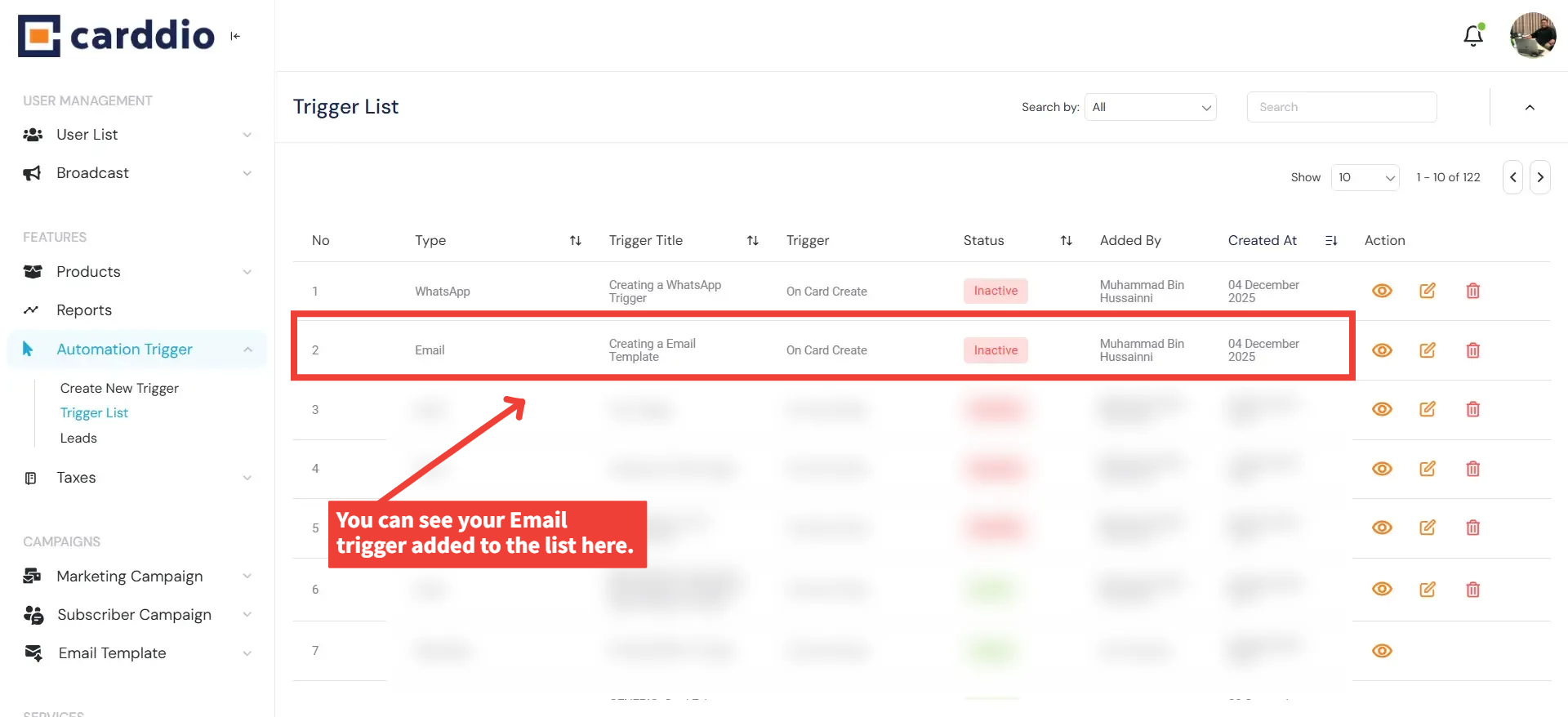
Success! Your Email Trigger has been successfully created and added to the Automation Trigger List.