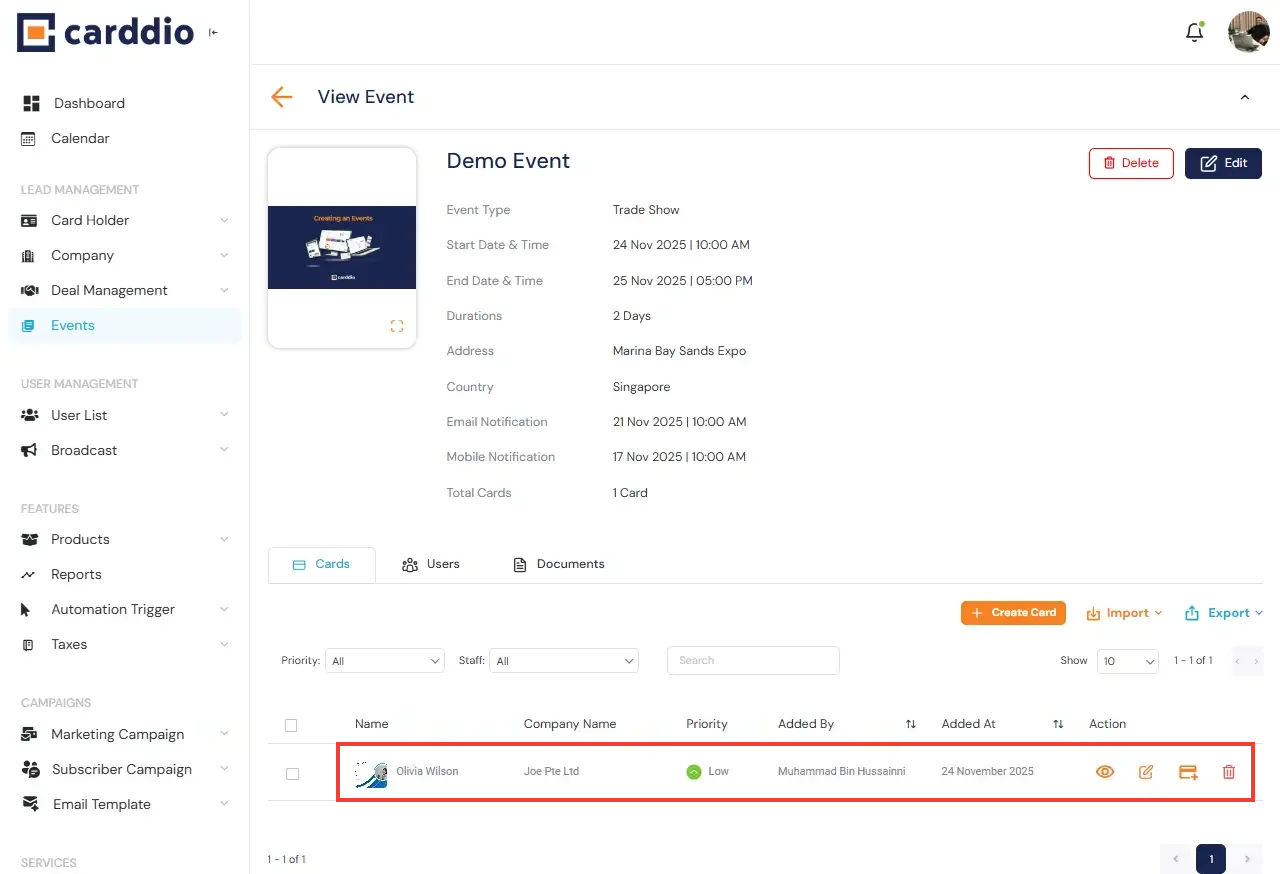

Adding cards to your event helps you capture attendee information and maintain organized records. Follow the steps below to navigate to an event and create a new event card.
-
Navigate to the Events Module
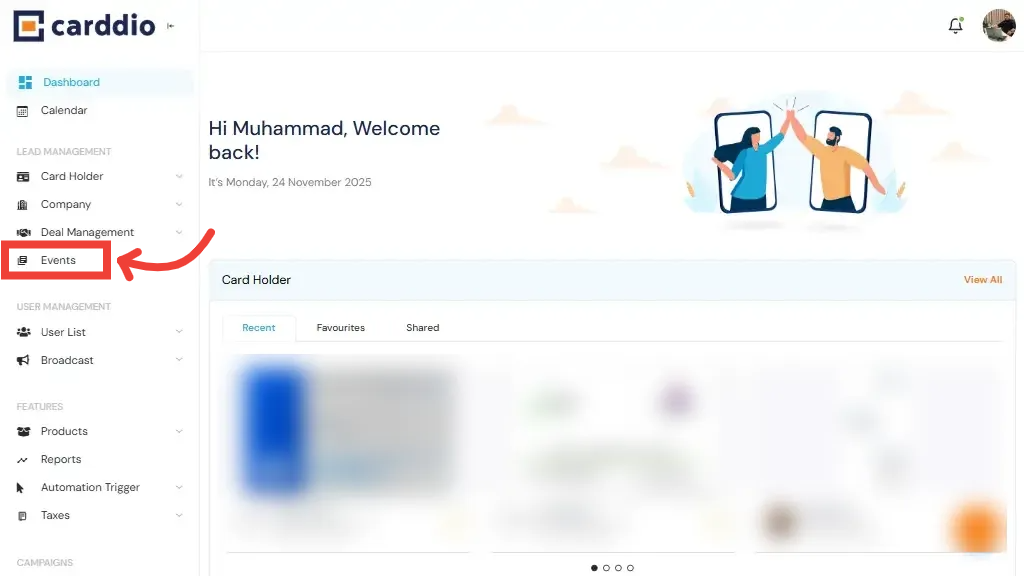
From the Dashboard, open the left sidebar and click on the Events section under Lead Management.
-
Open the Event
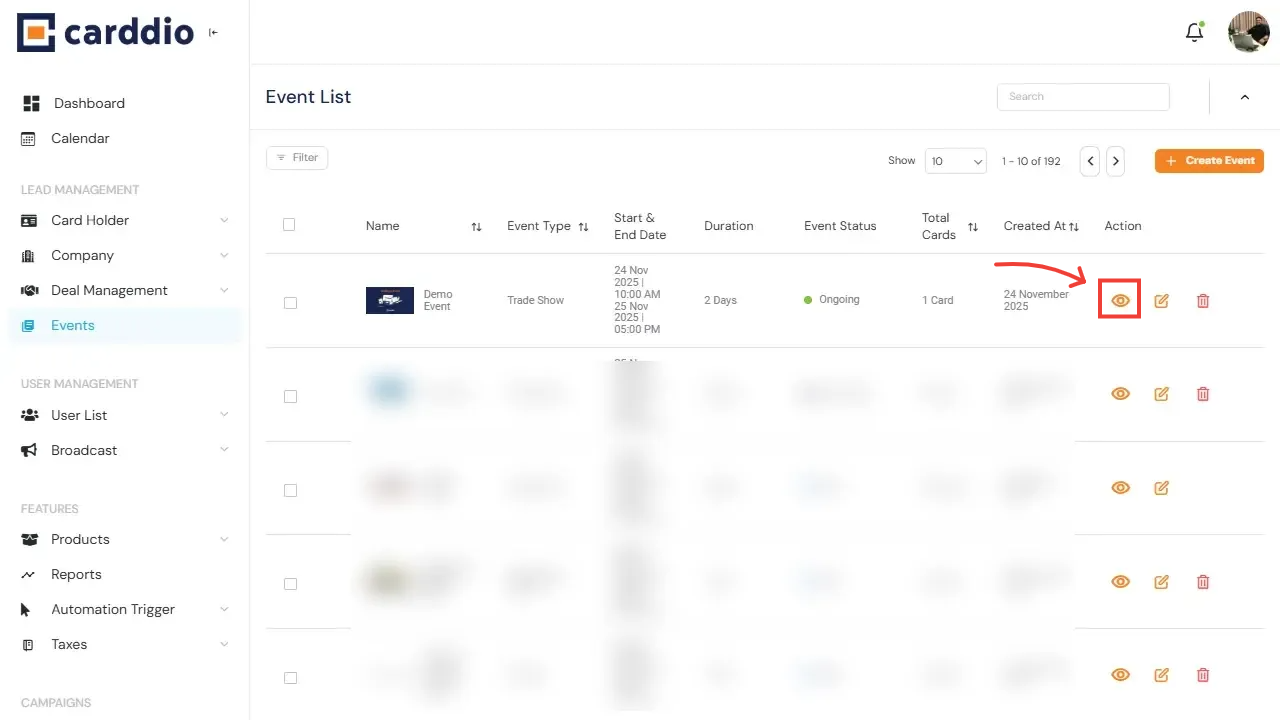
In the Event List, locate your event and click the View (eye) icon under the Action column to access the event details.
-
Go to the Cards Tab
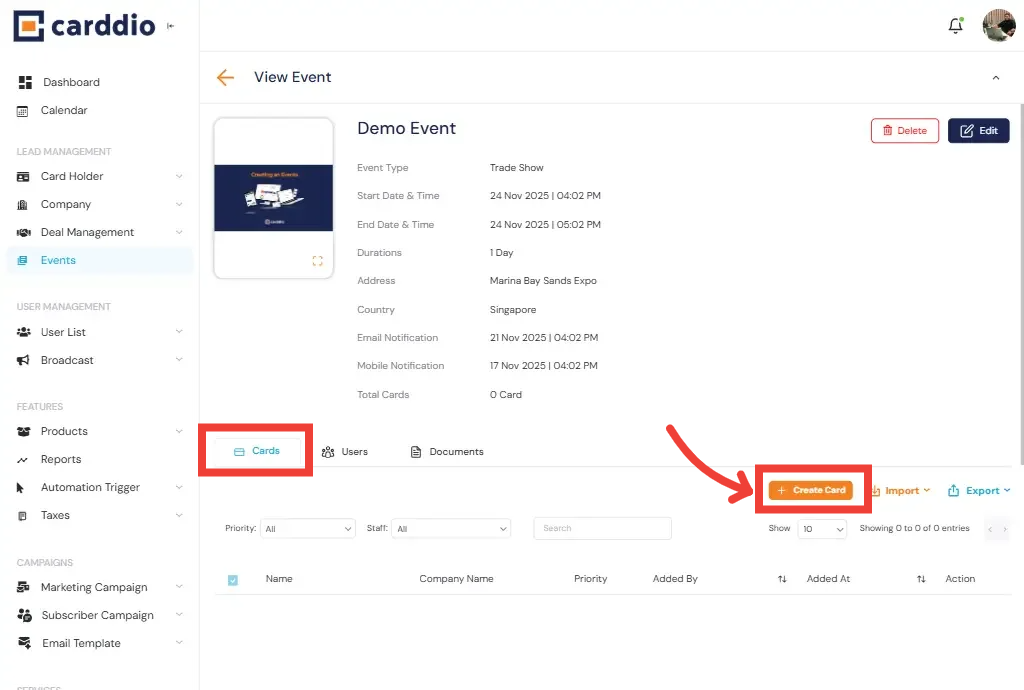
Inside the event view, select the Cards tab below the event information.
Then click the Create Card button located on the right side.
-
Fill in Card Details
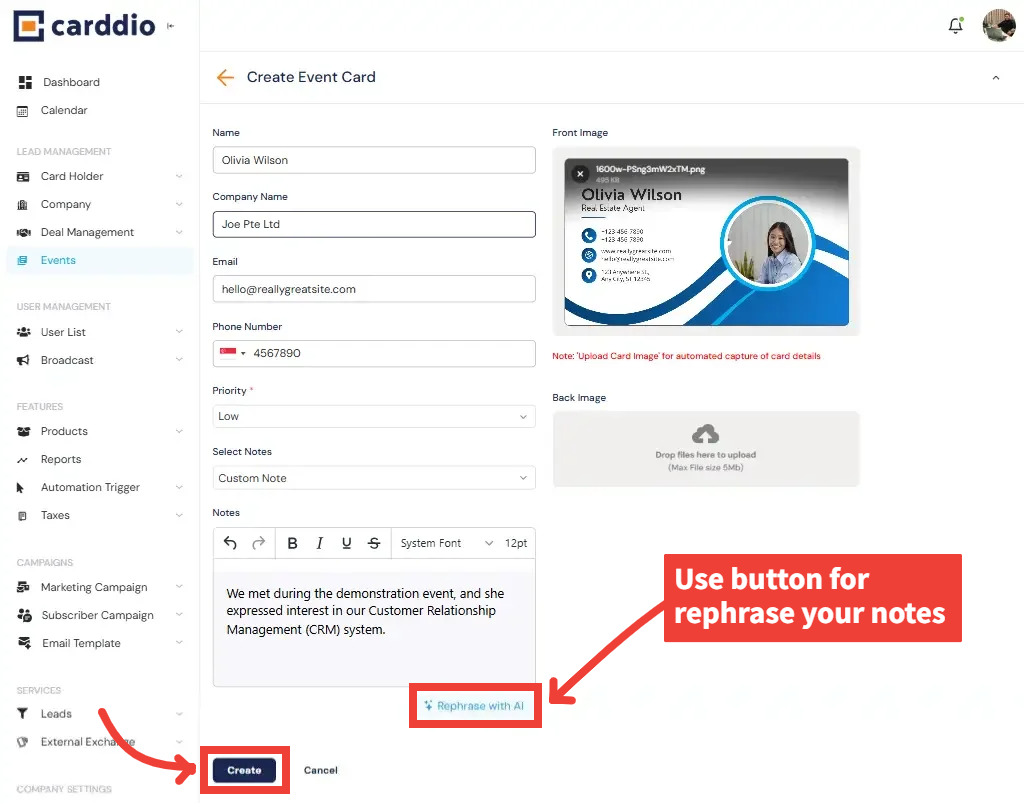
Complete the card creation form by entering the attendee details such as name, company, email, priority, and notes.
- Front Image: Upload the card front design.
- Back Image: Upload the card back if needed.
- Notes: Use the Rephrase with AI button to instantly enhance your written notes.
-
Create the Card
After entering all required information, click the Create button at the bottom to save the card.
Success! Your card has been successfully created and added to the event’s card list.