


Carddio allows you to define default permission sets for your four main roles: Company Admin, Admin, Manager, and Staff. Configuring these defaults ensures that every new user added to a role automatically starts with the correct access levels.
-
Access Role Permissions
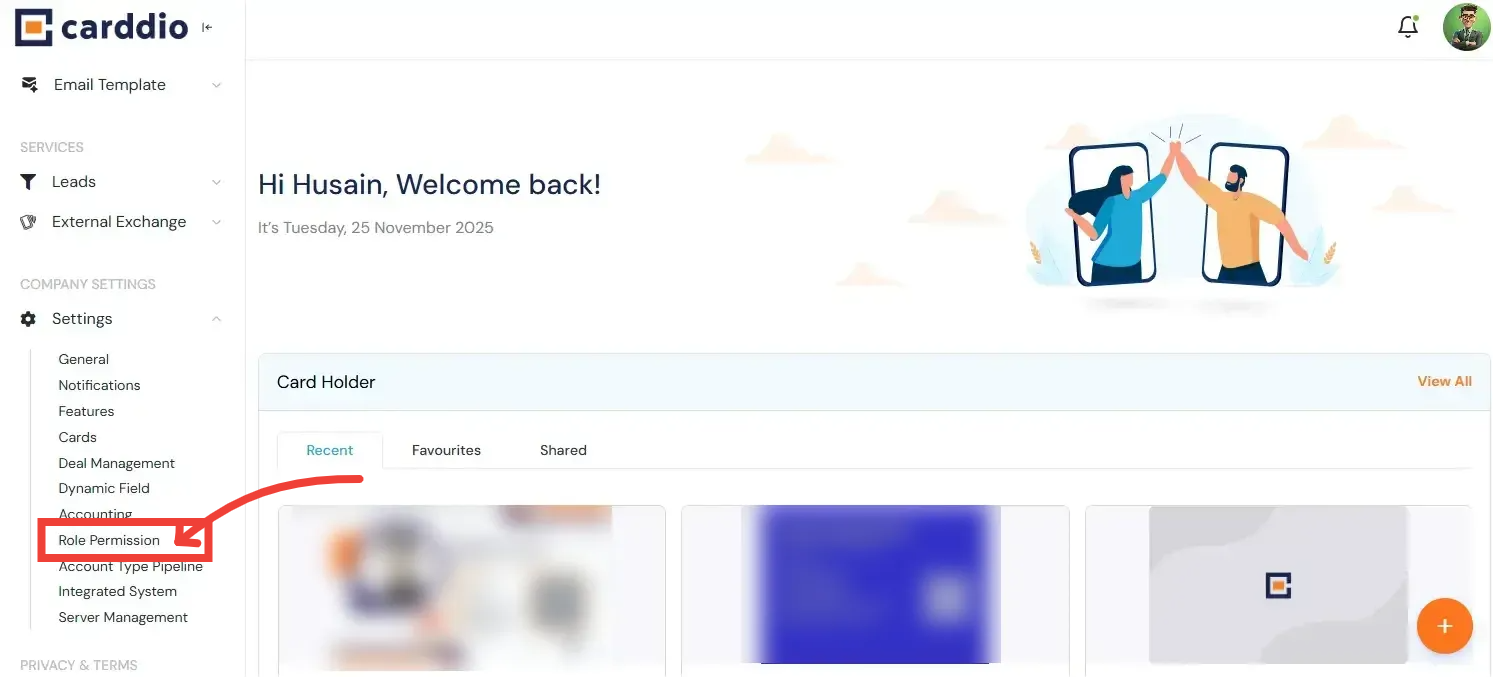
Log in to your dashboard. On the left sidebar, scroll down to the Company Settings section (or Settings) and click on Role Permission.
-
Select the Role to Configure
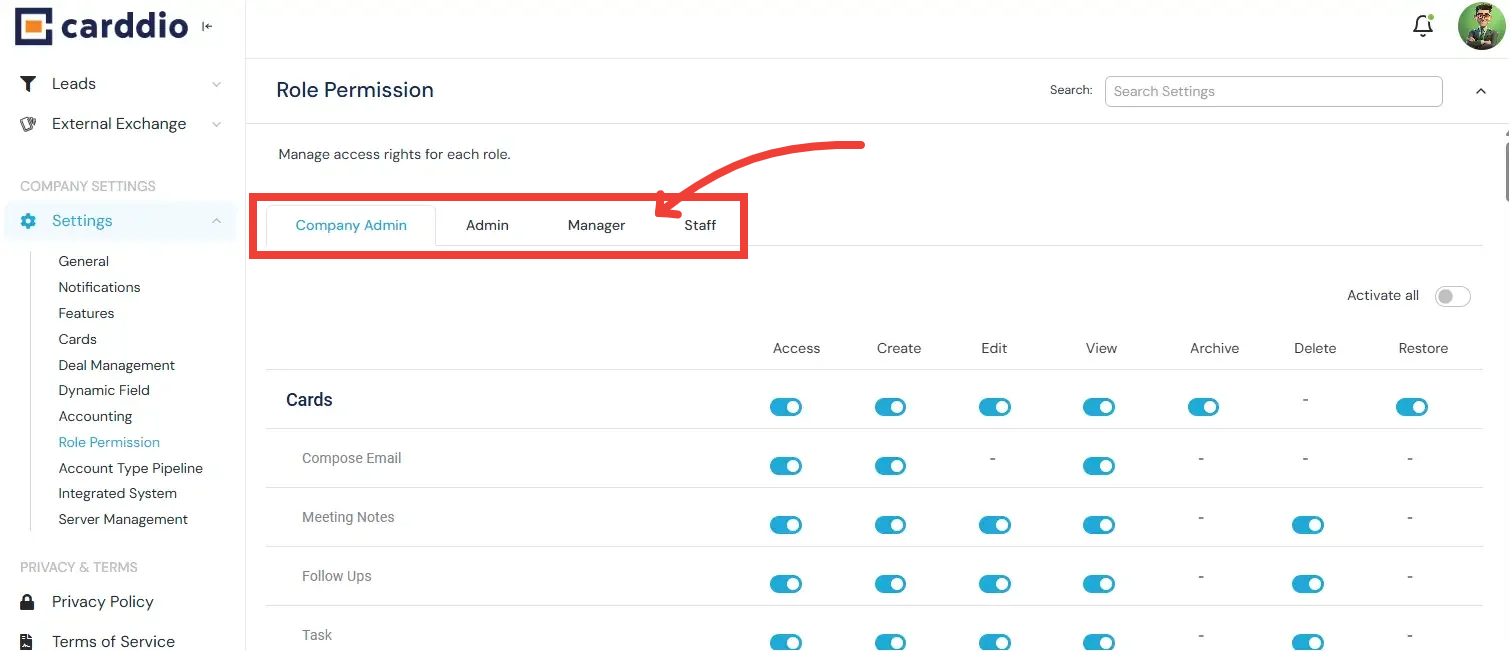
At the top of the page, you will see tabs for each role: Company Admin, Admin, Managers, and Staff. Click the tab for the role you wish to modify.
-
Toggle Default Permissions
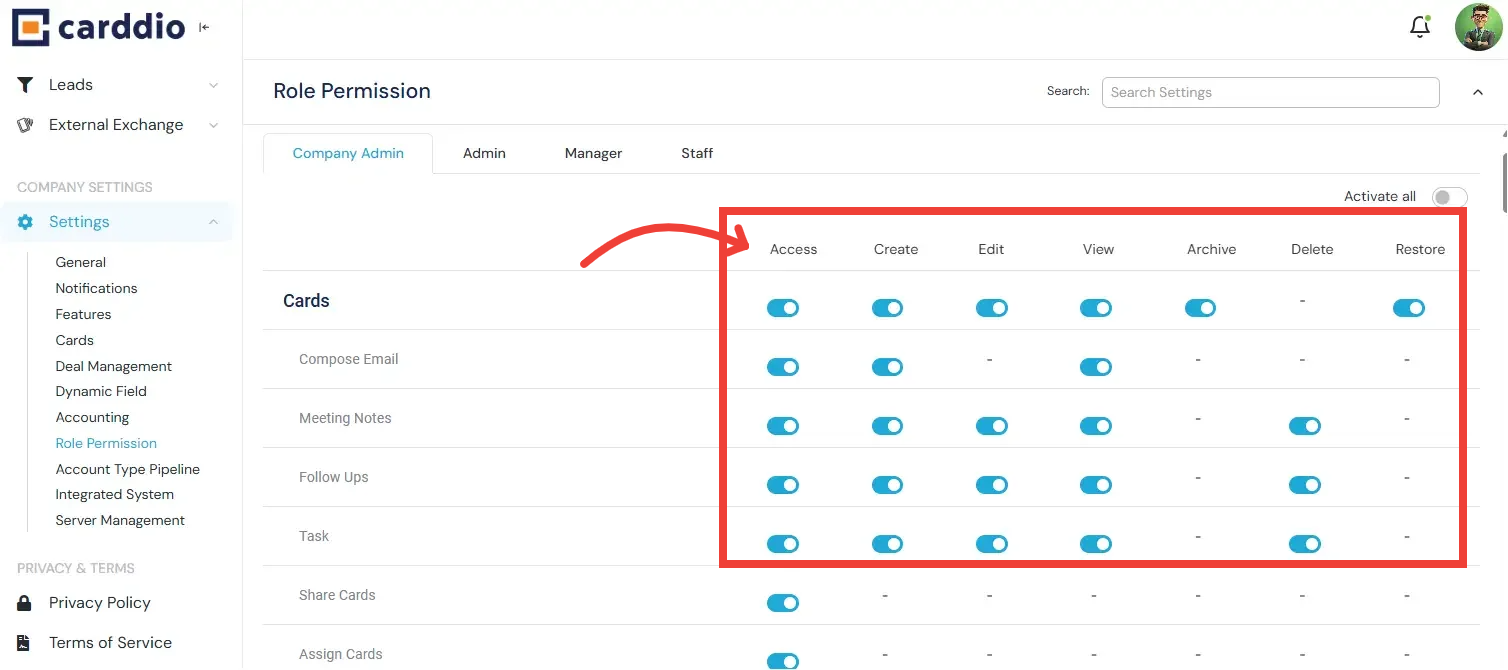
Review the list of modules (e.g., Cards, Leads, Products). Use the toggle switches to grant or restrict access for this specific role.
- Access: Allows the user to view the module in the sidebar.
- Create/Edit/Delete: Grants specific functional rights within that module.
- Blue Toggle: Permission is ON (Granted).
- Grey Toggle: Permission is OFF (Restricted).
-
Save or Reset
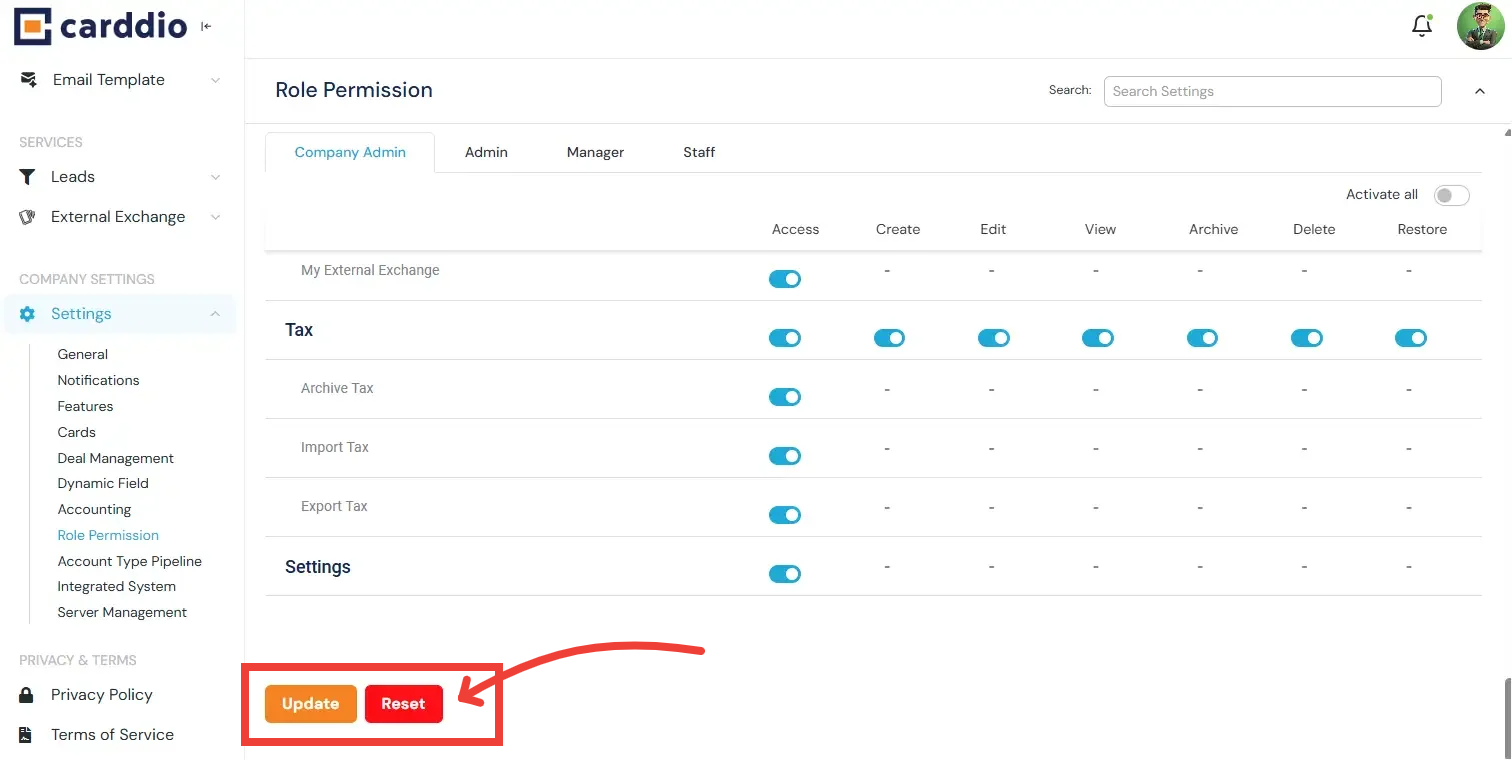
Scroll to the bottom of the page. You have two options:
- Reset: Clicking this button will revert all toggles on the page to their original default state.
- Update: Click this orange button to save your new configuration.
-
Confirm Changes
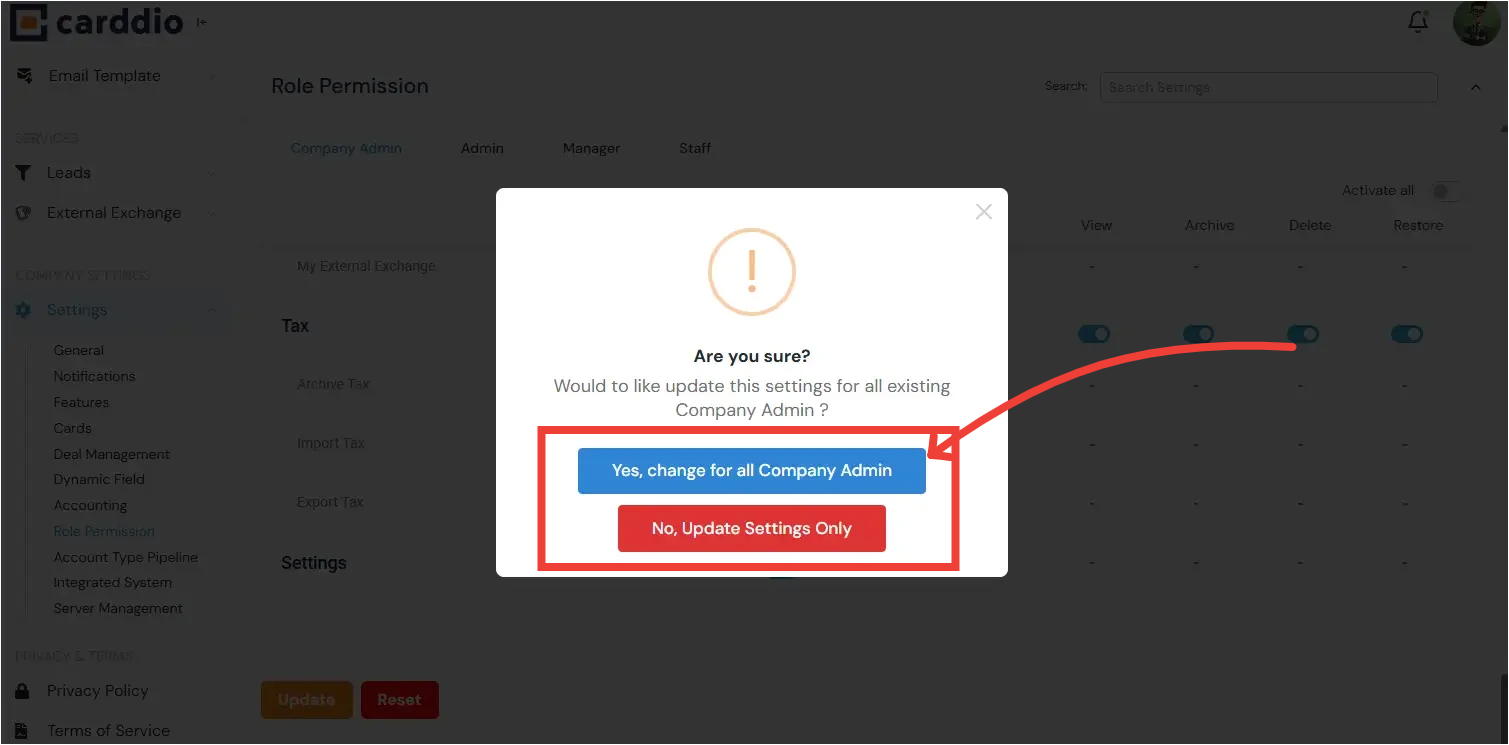
After clicking Update, a confirmation window will appear asking how you want to apply these changes. Choose carefully:
-
Yes, change for all [Role] (Blue Button):
This will save the new defaults AND immediately overwrite the permissions for all existing users who have this role. -
No, Update Settings Only (Red Button):
This will only save these permissions as the default for new users created in the future. Existing users will retain their current permissions.
-
Yes, change for all [Role] (Blue Button):
Success! Your role permissions have been updated successfully.


