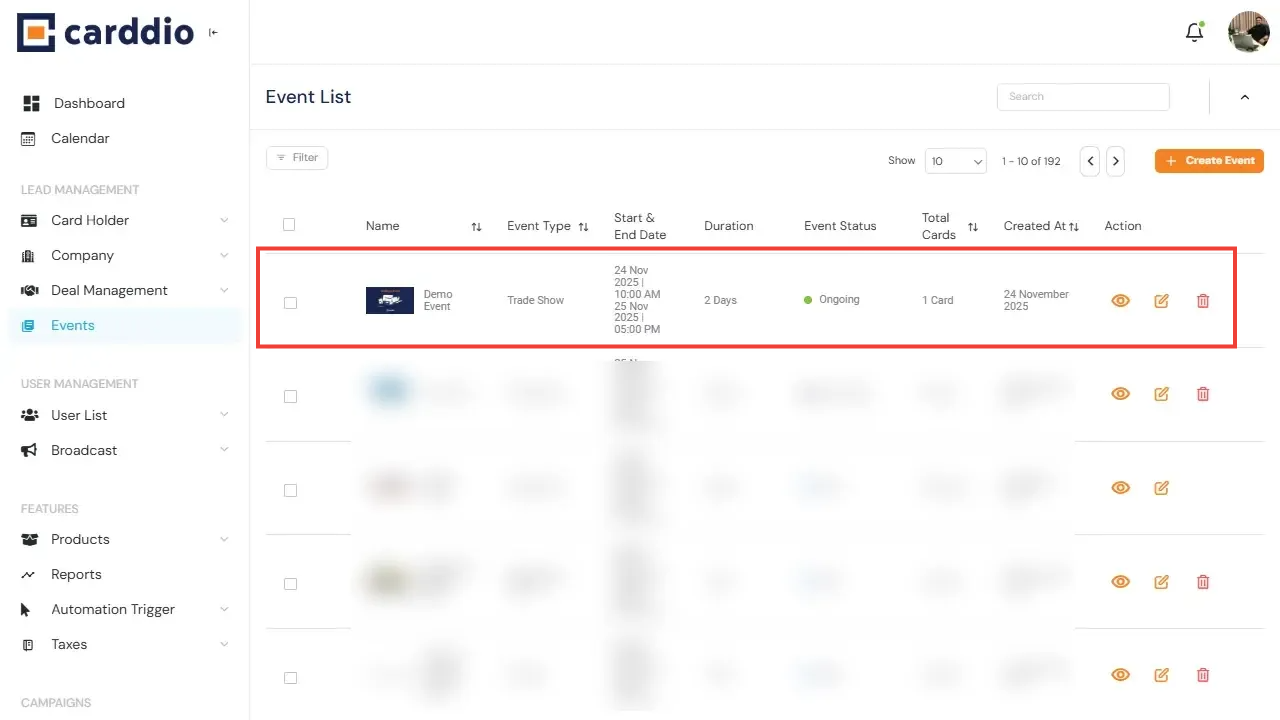

Creating and managing events in your Carddio system is simple and intuitive. Follow the steps below to navigate to the Event module, view the Event List, and create a new event.
-
Navigate to the Events Module
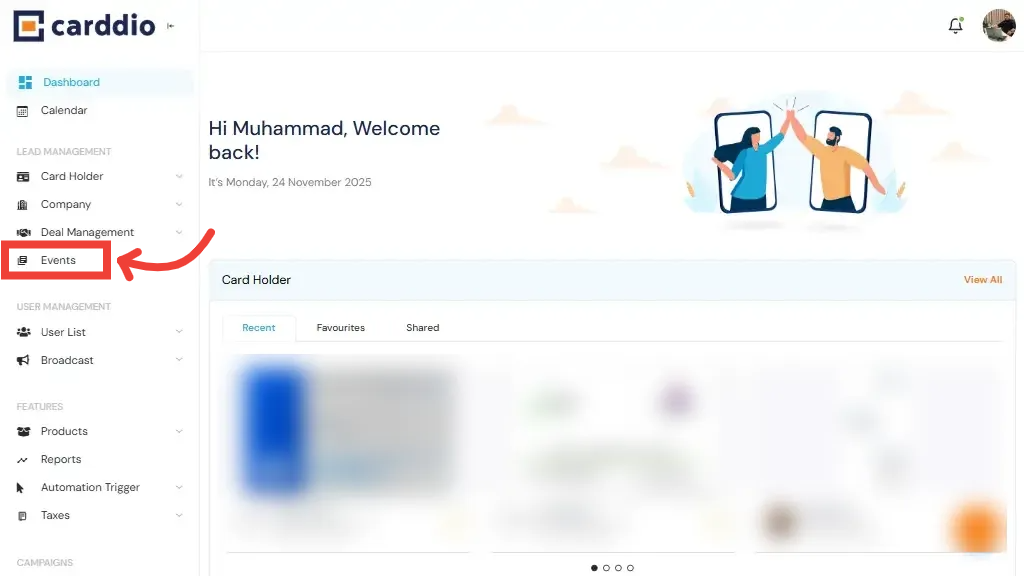
From the Dashboard, locate the left sidebar menu and click on the Events section under Lead Management to open the event management area.
-
View the Event List
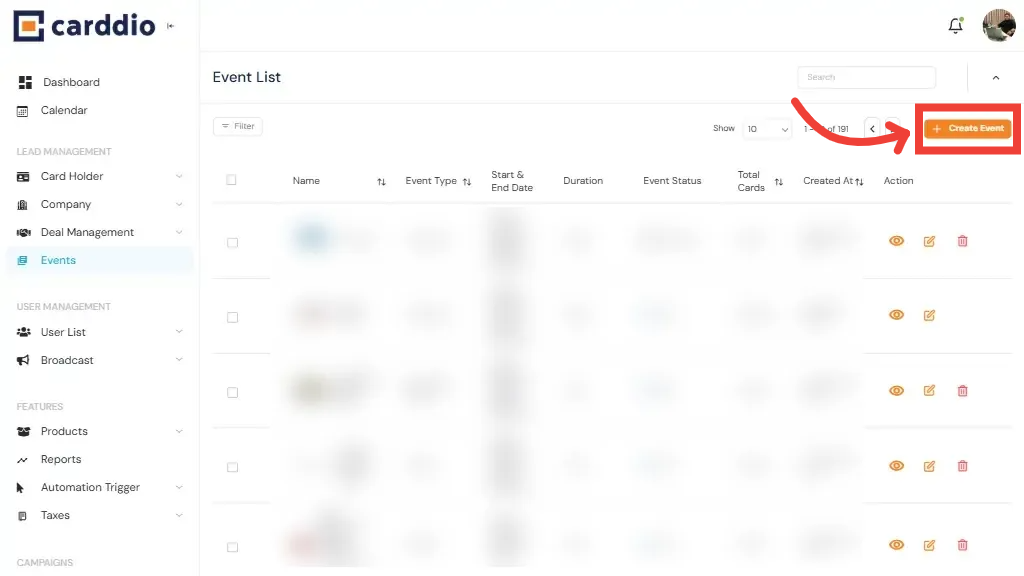
Once inside the Events page, you will see a list of all events along with their details such as Name, Type, Date, Status, and more.
To add a new event, click the Create Event button located at the top-right corner.
-
Fill in Event Details
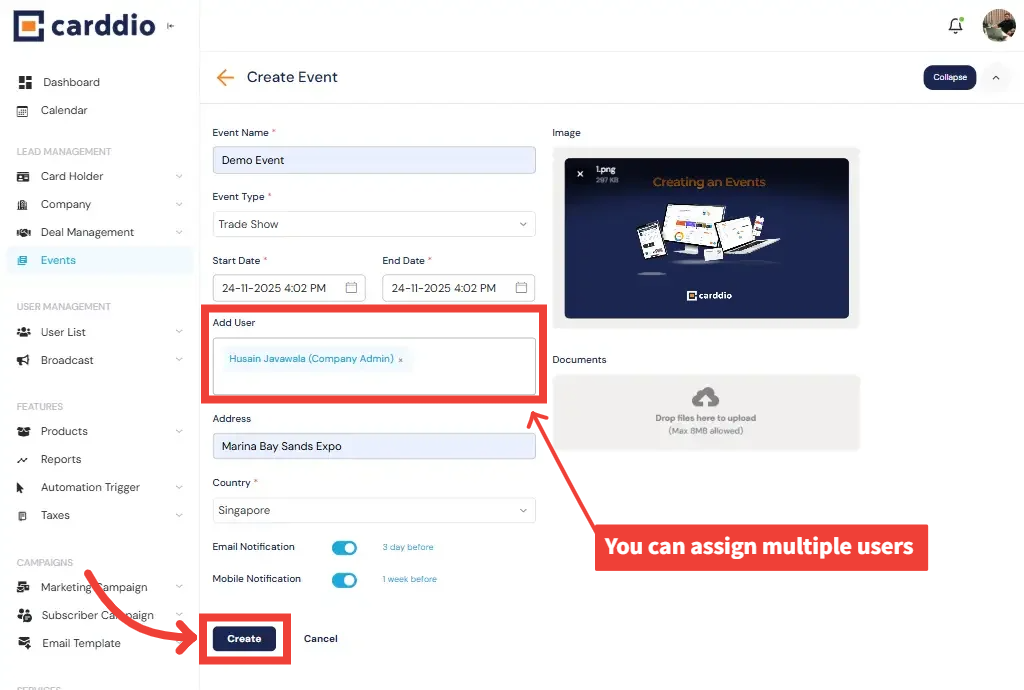
Complete the event creation form by entering the event name, type, start and end dates, address, country, and notification preferences.
You can also upload documents and add multiple users to the event.
- Add User: Assign one or multiple team members to the event.
- Image Upload: Attach a banner or cover image.
- Document Upload: Include files such as PDFs or instructions.
- Notifications: Set email and mobile reminders.
-
Create the Event
Once all details are filled in, simply click Create at the bottom of the page to finalize and save your new event.
Success! Your event has been successfully created and is now visible in the Event List.