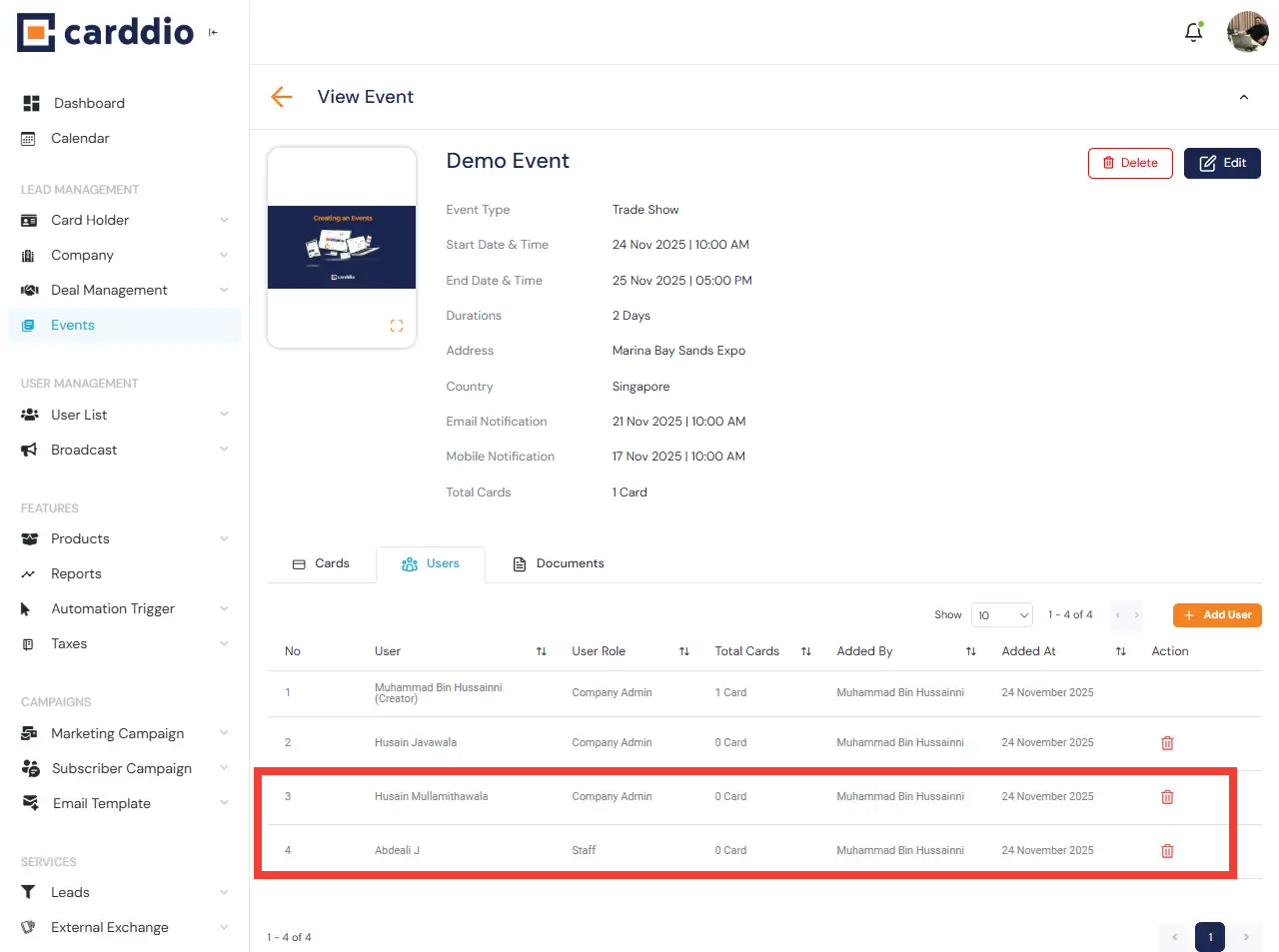

Assigning users to an event allows your team to collaborate, manage visitors, and contribute to event-related activities. Follow the steps below to add users to your event.
-
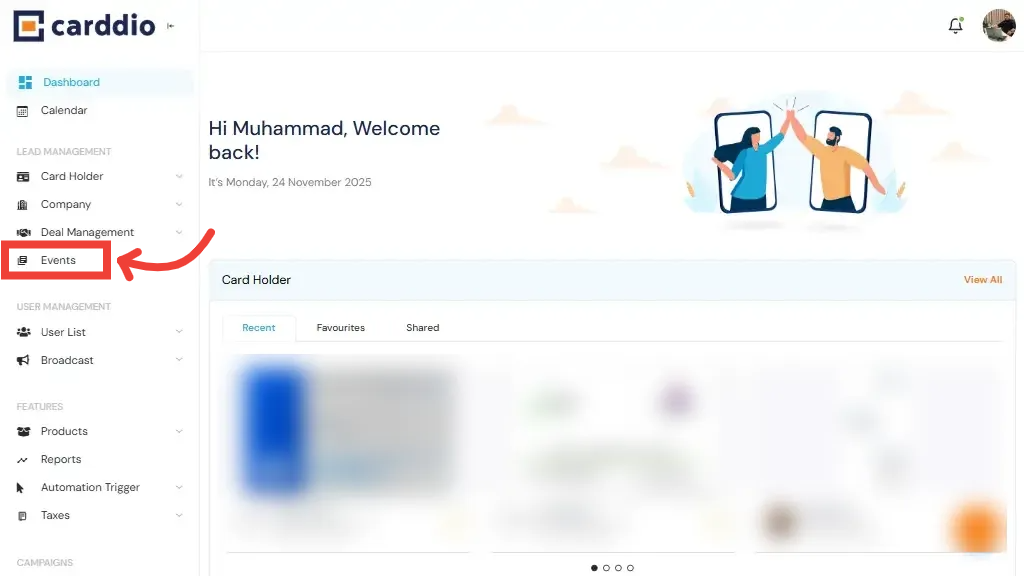
Navigate to the Events Module
From your Dashboard, open the left sidebar and click on the Events tab under Lead Management.
-
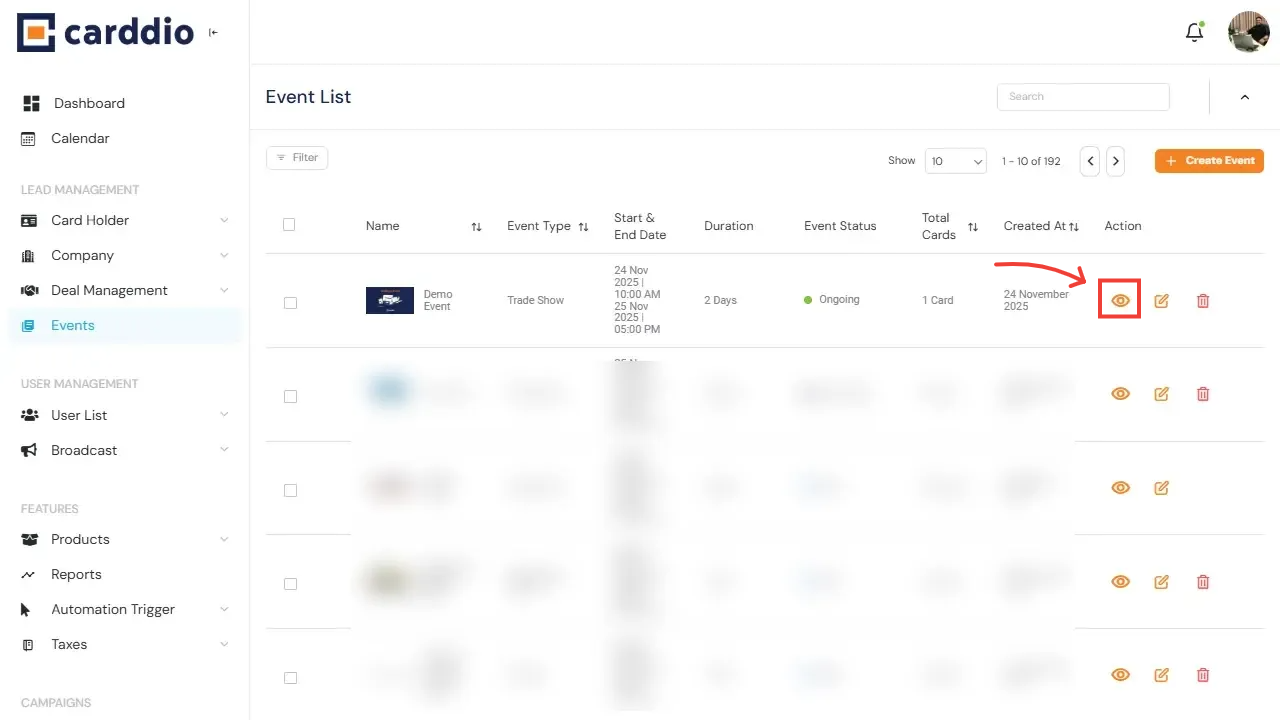
Open the Event
In the Event List, locate your event and click the View (eye) icon under the Action column.
-
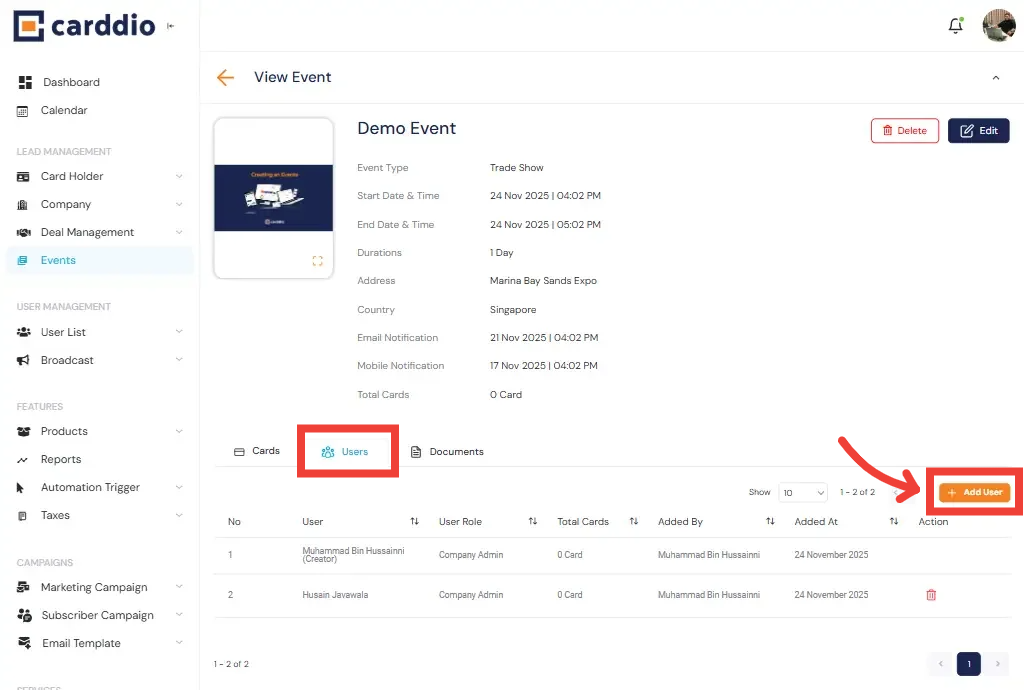
Open the Users Tab & Add Users
Inside the event view, click the Users tab to manage the list of assigned users.
Then click the Add User button on the right side to open the list of available users.
-
Select Users & Confirm
From the pop-up, select one or multiple users you wish to assign.
After choosing, click the Add button to finalize.
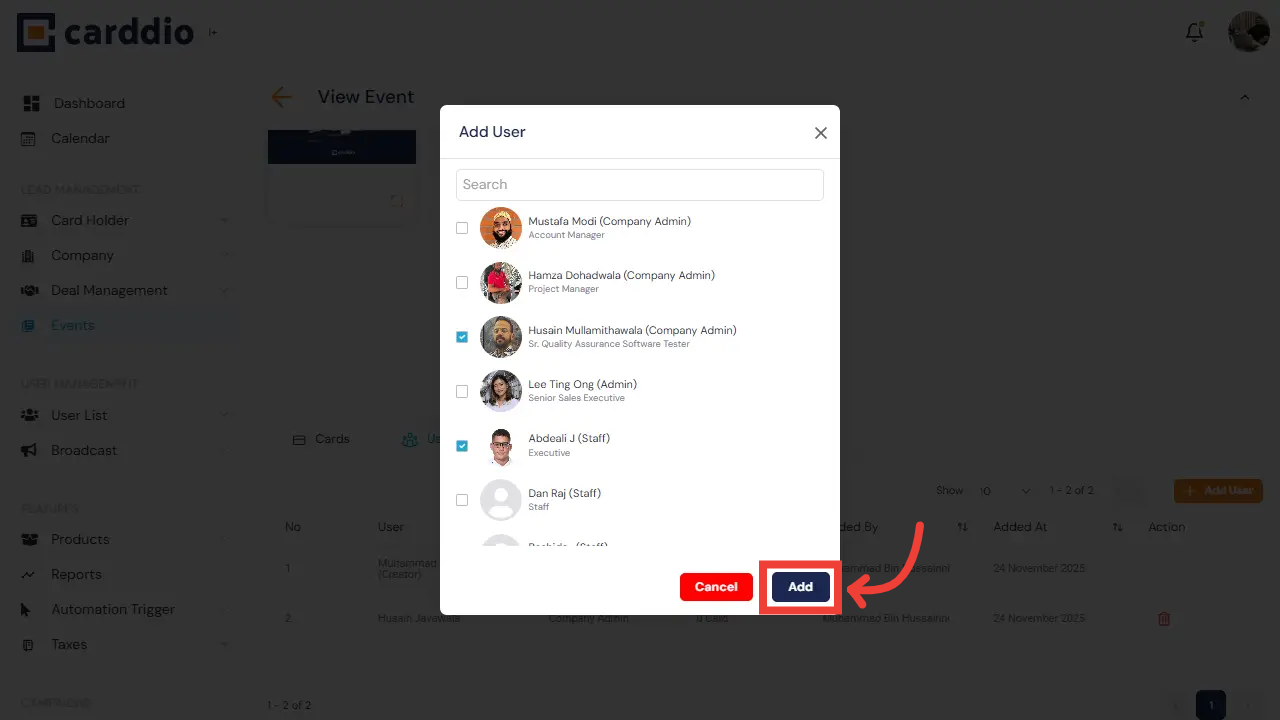
Success! The selected users have been successfully added to your event.